Using a keyboard and mouse with a Samsung Smart TV can make navigating the interface and typing easier and more efficient. However, not all Samsung Smart TVs support keyboard and mouse input, and even those that do may have specific requirements for compatibility. In this answer, we will cover some of the most common ways to use a keyboard and mouse with a Samsung Smart TV and the potential issues that may arise.
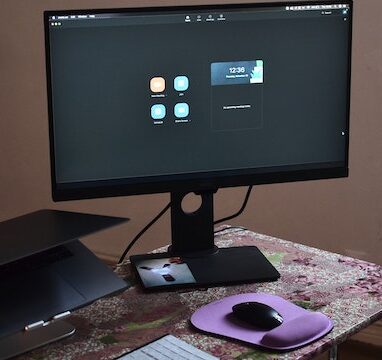
- Check compatibility
Before attempting to use a keyboard and mouse with your Samsung Smart TV, it’s important to check that your TV supports this input method. Some Samsung Smart TVs have built-in support for keyboard and mouse input, while others require a separate USB adapter to connect these peripherals.
To check if your Samsung Smart TV supports keyboard and mouse input, check the user manual or go to the “Settings” menu on your TV and look for an option for keyboard and mouse input. If you’re unsure, you can also search online for your TV’s model number and keyboard/mouse compatibility.
- Connect the keyboard and mouse
If your Samsung Smart TV supports keyboard and mouse input, connecting these peripherals is typically straightforward. If your keyboard and mouse are wireless, make sure they are both turned on and in pairing mode.
For TVs that have built-in keyboard and mouse support, simply connect the peripherals to the USB ports on the TV. If your TV requires a separate USB adapter, plug the adapter into the TV’s USB port and connect the keyboard and mouse to the adapter.
Once connected, your Samsung Smart TV should recognize the keyboard and mouse input and allow you to navigate the interface and type as you would on a computer.
- Troubleshoot issues
If you’re experiencing issues with your keyboard and mouse input on your Samsung Smart TV, there are a few things you can try to troubleshoot the issue.
First, make sure that your keyboard and mouse are fully charged or have fresh batteries. If your peripherals are low on power, they may not function properly.
Next, check that your TV’s firmware is up to date. Go to the “Settings” menu and look for an option to update the firmware. If there are any updates available, download and install them.
If you’re still experiencing issues, try disconnecting and reconnecting the keyboard and mouse or restarting your TV. You can also try connecting different keyboards and mice to see if the issue is specific to certain peripherals.
- Use keyboard and mouse shortcuts
Using a keyboard and mouse with your Samsung Smart TV can be more efficient than using the TV’s remote control, especially when typing or navigating menus. However, there may be some keyboard and mouse shortcuts that are specific to Samsung Smart TVs.
Some common keyboard shortcuts for Samsung Smart TVs include:
- “Esc” key: Returns to the previous menu or exits the current app
- “Enter” key: Selects an item or confirms an action
- “Arrow” keys: Navigates menus or moves the cursor
- “Home” key: Opens the Samsung Smart TV home menu
- “Backspace” key: Deletes text or characters
Mouse shortcuts may also include left-click to select an item or right-click to open a menu.
- Consider a keyboard and mouse combo
If you’re having trouble finding a keyboard and mouse that are compatible with your Samsung Smart TV, consider purchasing a keyboard and mouse combo specifically designed for smart TVs. These peripherals typically have a built-in touchpad or trackball and may include dedicated shortcut keys for TV-specific functions.
In summary, using a keyboard and mouse with a Samsung Smart TV can make navigating the interface and typing easier and more efficient. Check your TV’s compatibility and connect your peripherals using USB or a USB adapter. Troubleshoot any issues by checking firmware updates and disconnecting/reconnecting the peripherals.