Adding a new hard drive to a Windows 10 computer can be a simple and straightforward process. This process involves physically installing the hard drive into the computer and then configuring it using Windows 10 software. Here’s a step-by-step guide on how to add a new hard drive to a Windows 10 computer:
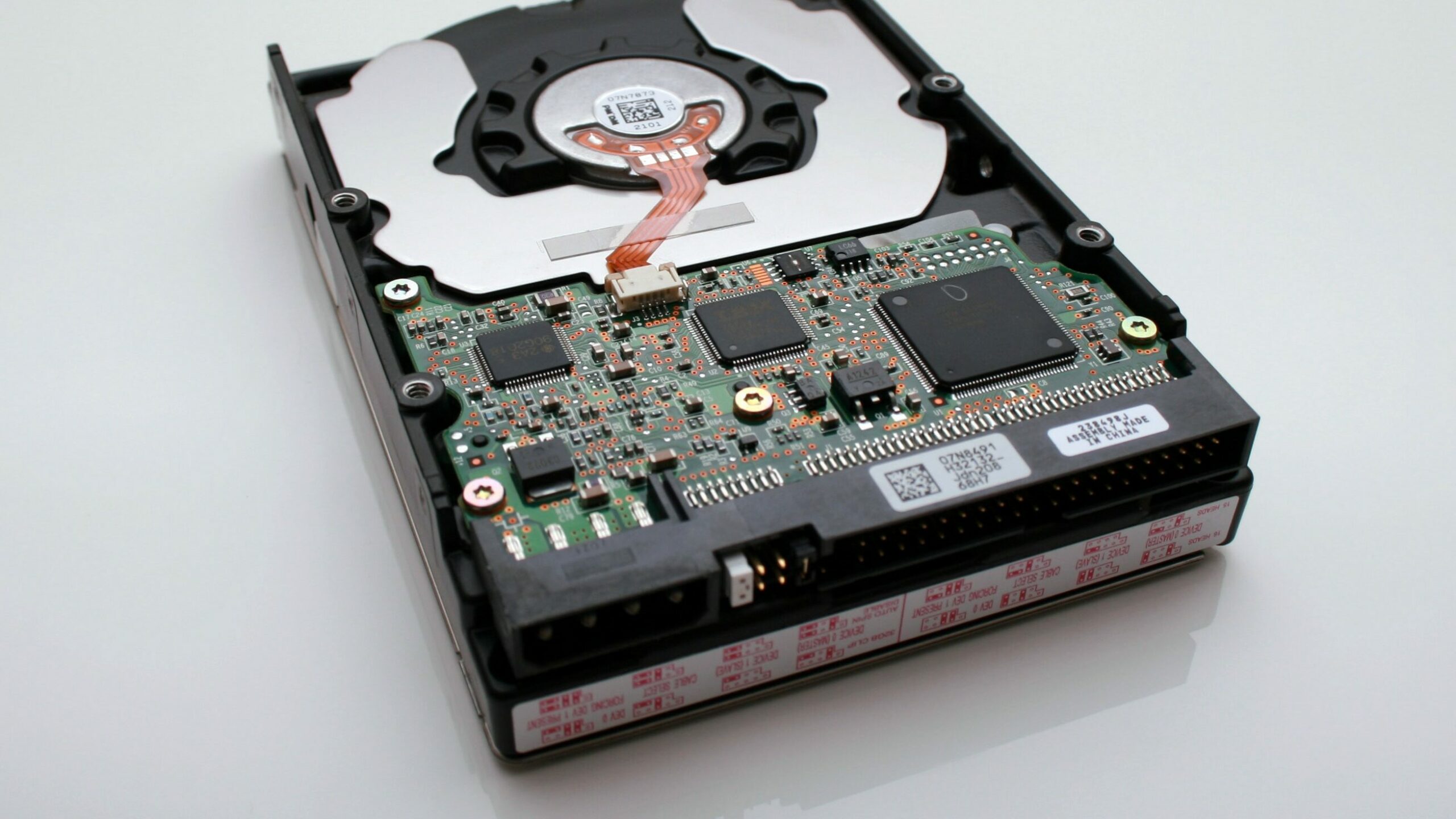
Step 1: Choose the Hard Drive
Before starting, you need to decide which hard drive you want to install. There are several types of hard drives available, including SATA and NVMe, with different capacities and speeds. Make sure to choose a hard drive that is compatible with your computer and meets your storage needs.
Step 2: Prepare the Computer
Shut down the computer and unplug it from the power source. Open the computer case and locate an empty drive bay where you can install the new hard drive. Make sure the bay has enough space to accommodate the new hard drive.
Step 3: Install the Hard Drive
Remove the hard drive from its packaging and carefully insert it into the empty drive bay. Align the screw holes on the sides of the hard drive with the holes on the drive bay and secure the drive in place using screws.
Step 4: Connect the Hard Drive
Connect the SATA data cable to the hard drive and the SATA port on the motherboard. The SATA data cable is a flat, narrow cable with a L-shaped connector on one end and a straight connector on the other end. Make sure to connect the L-shaped end to the hard drive and the straight end to the motherboard.
Next, connect the SATA power cable to the hard drive and the power supply unit. The SATA power cable is a wider cable with a flat connector on one end and multiple L-shaped connectors on the other end. Make sure to connect the flat end to the power supply unit and the L-shaped end to the hard drive.
Step 5: Start the Computer and Configure the Hard Drive
Close the computer case and plug in the power cable. Turn on the computer and wait for it to boot up. Once Windows 10 is running, press the Windows key + X to open the Quick Link menu, then select “Disk Management” from the list.
In Disk Management, you will see the new hard drive listed as “Unallocated.” Right-click on the hard drive and select “New Simple Volume.” Follow the prompts to configure the hard drive, including choosing the file system, assigning a drive letter, and formatting the hard drive.
Step 6: Test the Hard Drive
Once the hard drive is configured, you can test it to make sure it is working properly. You can do this by opening Windows Explorer and navigating to the new hard drive. Try copying and pasting some files to the new hard drive to make sure it is functioning correctly.
In conclusion, adding a new hard drive to a Windows 10 computer can be a relatively simple process. It involves physically installing the hard drive into the computer and configuring it using Windows 10 software. By following these steps, you can successfully add a new hard drive to your Windows 10 computer and increase your storage capacity.