Yes, it is possible to transfer everything to your new iPhone except photos. There are several ways to transfer data from one iPhone to another, and the method you choose will depend on your specific needs and preferences. Here are some common methods for transferring data from one iPhone to another without including photos:
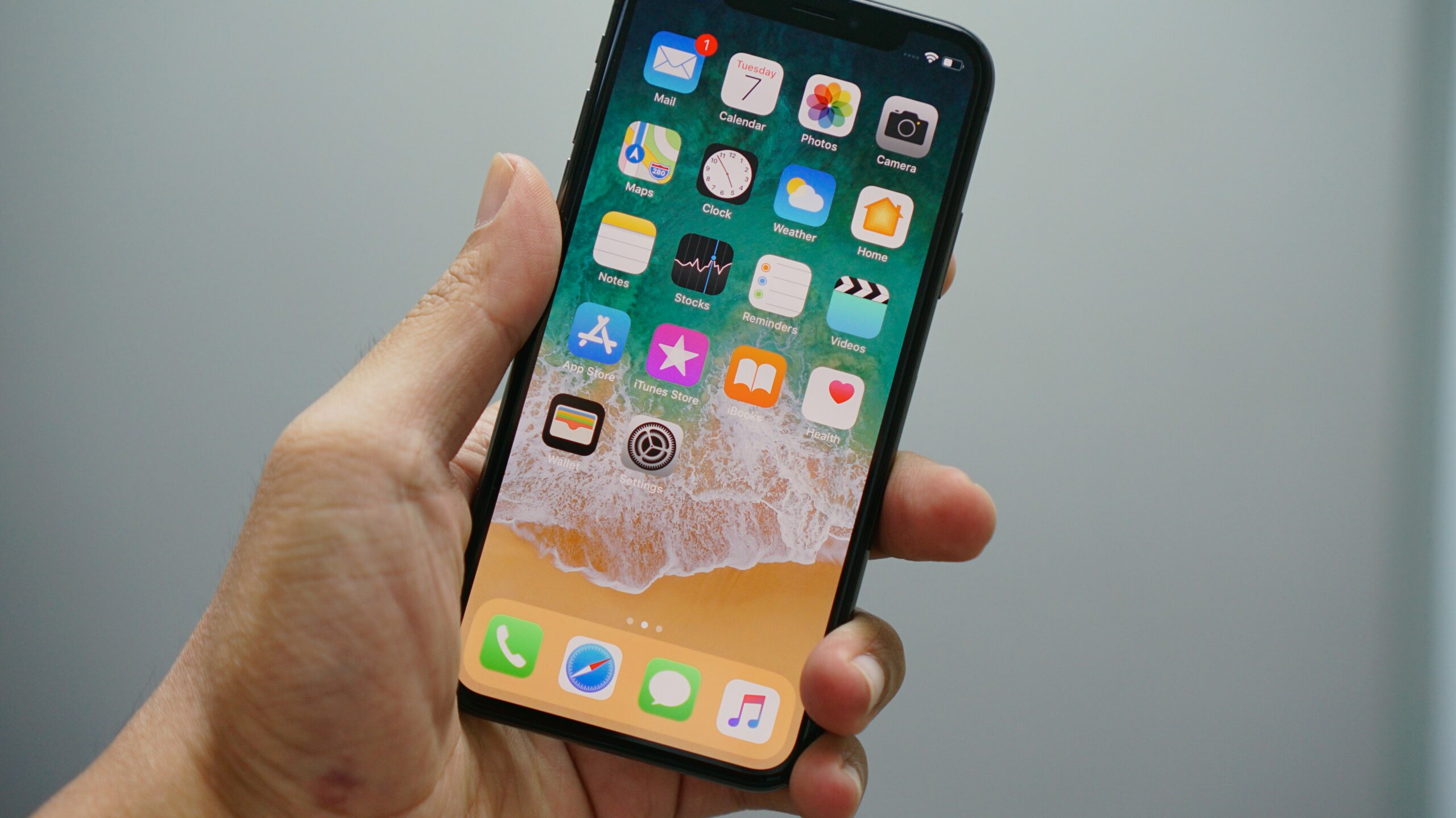
- iCloud Backup: If you have an iCloud account, you can use iCloud Backup to transfer data from your old iPhone to your new one. This method will transfer all of your data except photos, so you’ll need to manually transfer your photos using another method. To use iCloud Backup, simply connect your old iPhone to Wi-Fi, go to Settings > iCloud > Backup, and then tap “Backup Now.” Once the backup is complete, sign in to iCloud on your new iPhone and select “Restore from iCloud Backup.”
- iTunes Backup: If you prefer to transfer data using your computer, you can use iTunes Backup to transfer everything except photos to your new iPhone. To do this, connect your old iPhone to your computer, open iTunes, and then click on the iPhone icon in the top left corner. From there, select “Back Up Now” to create a backup of your iPhone. Once the backup is complete, disconnect your old iPhone and connect your new iPhone to your computer. Then, click on the iPhone icon in iTunes, select “Restore Backup,” and choose the backup you just created.
- Third-Party Apps: There are several third-party apps available that can help you transfer data from one iPhone to another without including photos. These apps work by creating a local Wi-Fi network between your two devices and transferring data directly between them. Some popular third-party transfer apps include Copy My Data, AnyTrans, and iMazing.
- Manual Transfer: If you only need to transfer a few specific items, such as contacts or messages, you can do so manually without using a backup method. To transfer contacts, for example, go to Settings > Accounts & Passwords > Add Account on your old iPhone, and then select “Google.” Sign in with your Google account and turn on the “Contacts” toggle. Then, sign in to your Google account on your new iPhone and turn on the “Contacts” toggle. Your contacts will then sync to your new iPhone. Similarly, you can manually transfer messages by backing up your old iPhone to your computer using iTunes and then restoring the backup to your new iPhone.
Regardless of the method you choose, it’s important to make sure that your data is backed up before transferring it to your new iPhone. This will ensure that your important files are not lost in the event of a transfer error or other issue. Once you’ve successfully transferred your data to your new iPhone, you can then manually transfer your photos using a variety of methods, such as iCloud Photo Library, AirDrop, or a USB cable.