The ability to silence notifications from a specific person can be useful in many situations, such as when you want to avoid distractions or when you receive messages that aren’t important. There are several ways to achieve this, depending on the messaging app you use and the device you have.
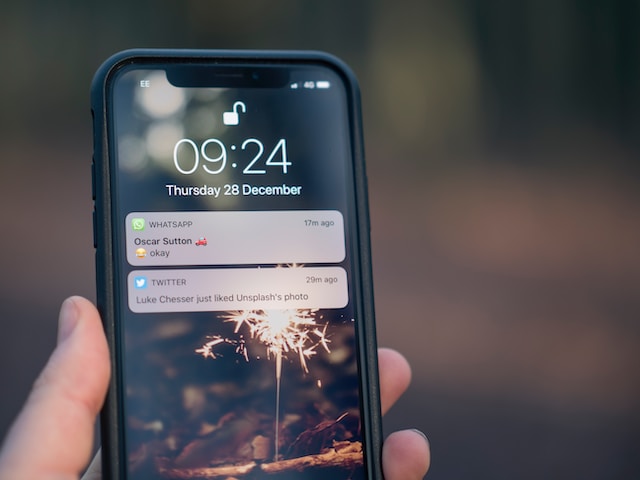
One way to silence notifications from a specific person is to mute notifications from a chat or group. Most messaging apps allow you to do this, and the process is usually straightforward. For example, in WhatsApp, you can open the chat you want to mute and tap on the name of the contact or group at the top. Then, select “mute notifications” and choose the duration of time you want to mute notifications for. This will silence notifications from that chat for the selected time period.
Another way to silence notifications from a specific person is to use the “Do Not Disturb” mode on your device. This mode will silence all notifications, calls, and alerts, so it’s useful when you want to avoid distractions in general. To enable Do Not Disturb mode on an iPhone, swipe up from the bottom of the screen to access the Control Center. Then, tap on the crescent moon icon to enable Do Not Disturb. You can also schedule Do Not Disturb mode to turn on automatically during specific times, such as when you’re sleeping. On Android devices, you can enable Do Not Disturb mode by swiping down from the top of the screen to access the Quick Settings menu. Then, tap on the Do Not Disturb icon. You can also customize Do Not Disturb mode to allow notifications from certain contacts or apps.
Creating a custom notification tone or vibration is another way to distinguish notifications from a specific person. This way, you’ll be able to tell when you receive a message from them without having to look at your phone. To create a custom notification tone on an iPhone, go to Settings > Sounds & Haptics > Text Tone. Then, select “Vibration” and choose “Create New Vibration” to create a custom vibration pattern. To create a custom notification tone, you can download a third-party app or create your own using a sound editing program. On Android devices, you can create a custom notification tone by going to Settings > Sound > Phone Ringtone. From there, select “Add” to choose a new tone or vibration pattern. You can also download third-party apps to create custom notification tones and vibrations.
If your messaging app doesn’t have built-in options to silence notifications from specific contacts, you can use a third-party app to achieve this. There are several apps available that can help you manage notifications, such as “Notif Log Notification History” for Android and “Notification Keeper” for iOS. These apps allow you to view your notification history and filter notifications based on keywords or contacts. You can also set up rules to automatically silence notifications from certain contacts or apps.
Lastly, if none of the above methods work for you, you can always turn off notifications for the messaging app altogether. This will silence all notifications, including those from the specific person you want to silence. However, this may not be the best solution if you still want to receive notifications from other contacts.
In conclusion, silencing notifications from a specific person can be done in several ways, depending on the messaging app you use and the device you have. Muting notifications from a chat or group, using the “Do Not Disturb” mode, creating a custom notification tone or vibration, using a third-party app, and turning off notifications for the messaging app altogether are all effective ways to achieve this. By using these methods, you can avoid distractions and manage your notifications more effectively.