A docking station with two HDMI ports allows you to connect two external displays to your laptop or desktop computer. This can be useful for a variety of purposes, such as extending your desktop to increase your workspace or giving presentations on multiple screens.
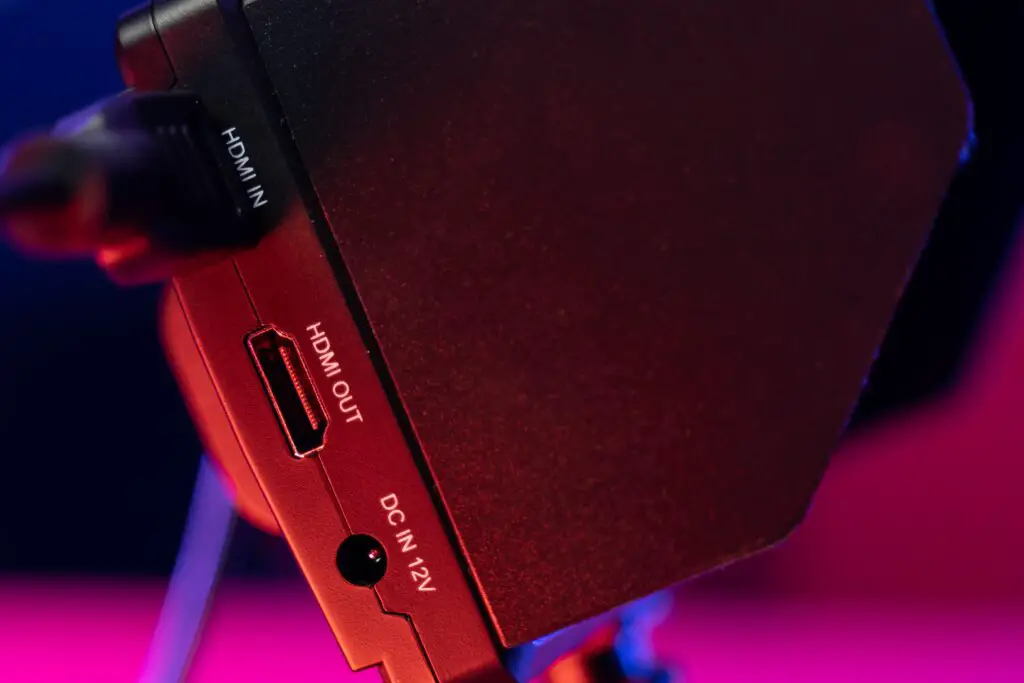
Here are some things to consider when choosing a docking station with two HDMI ports:
- Compatibility: Make sure the docking station is compatible with your computer. Check the specifications of the docking station to see if it supports the operating system of your laptop or desktop. Also, check the input ports on your computer to ensure that they are compatible with the output ports on the docking station.
- Number of HDMI ports: Make sure the docking station has two HDMI ports. Some docking stations may have a combination of HDMI and other ports such as VGA, DVI, or DisplayPort. If you require two HDMI ports specifically, make sure the docking station has them.
- Resolution: Check the maximum resolution that the docking station can support. This is especially important if you plan to use the docking station for video editing, gaming, or other applications that require high-resolution displays. Make sure the docking station can support the resolution of your external displays.
- USB ports: Check the number and type of USB ports on the docking station. Consider whether you need USB 2.0 or USB 3.0 ports, and how many you need for your peripherals such as external hard drives, keyboards, or mice.
- Ethernet port: If you require a wired internet connection, make sure the docking station has an Ethernet port. This is useful if you need a stable and reliable internet connection for video streaming or online gaming.
- Audio ports: Check whether the docking station has audio ports for connecting external speakers or headphones. This is especially important if your external displays do not have built-in speakers.
- Power supply: Some docking stations require external power to function properly. Make sure the docking station comes with a power supply that is compatible with your location.
Once you have chosen the docking station that meets your needs, here are the steps to set it up:
- Connect the docking station to your computer using a USB cable or other connection method as specified by the docking station’s instructions.
- Connect one end of an HDMI cable to one of the HDMI ports on the docking station, and the other end to one of the external displays.
- Repeat step 2 to connect the second HDMI port on the docking station to the second external display.
- If required, connect any peripherals such as external hard drives, keyboards, or mice to the USB ports on the docking station.
- Connect external speakers or headphones to the audio port on the docking station if required.
- If required, connect an Ethernet cable to the Ethernet port on the docking station to establish a wired internet connection.
- Finally, connect the power supply to the docking station and plug it into an electrical outlet.
In conclusion, a docking station with two HDMI ports can be a valuable accessory for extending your desktop or presenting on multiple screens. Consider compatibility, resolution, USB ports, Ethernet port, audio ports, and power supply when choosing a docking station. Then, follow the steps to connect the docking station to your computer and external displays.