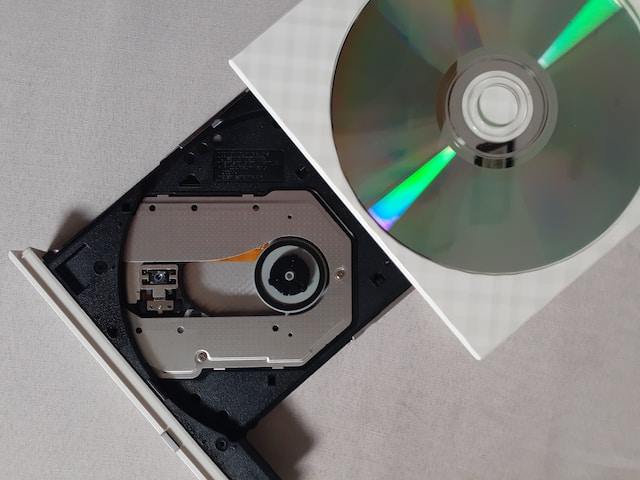
When it comes to using a DVD player on Linux, there are a number of options available. While many Linux distributions come with built-in media players that can handle DVDs, some users may prefer to use dedicated DVD player software for a better user experience. In this article, we’ll explore some of the best DVD player options for Linux.
- VLC Media Player VLC is a popular cross-platform media player that is compatible with Linux, Windows, and macOS. It supports a wide range of audio and video formats, including DVDs. VLC is free and open source, and offers a range of features, including subtitle support and the ability to customize video and audio playback settings.
To play a DVD with VLC, simply insert the disc into your DVD drive and open VLC. Click on “Media” in the menu bar, then select “Open Disc.” From there, you can choose the DVD drive and click “Play” to start watching.
- SMPlayer SMPlayer is another open source media player that supports DVDs on Linux. It offers a range of features, including subtitle support, audio and video equalizers, and the ability to remember your playback position for each video.
To play a DVD with SMPlayer, insert the disc into your DVD drive and open SMPlayer. Click on “Open” in the menu bar, then select “DVD.” From there, you can choose the DVD drive and click “Play” to start watching.
- MPlayer MPlayer is a popular command-line media player that is compatible with Linux, Windows, and macOS. It supports a wide range of video and audio formats, including DVDs. MPlayer is free and open source, and offers a range of features, including subtitle support and the ability to customize video and audio playback settings.
To play a DVD with MPlayer, insert the disc into your DVD drive and open a terminal window. Type “mplayer dvd://” followed by the DVD drive letter, then press enter to start watching.
- Totem Totem is the default media player for the GNOME desktop environment in many Linux distributions. It supports a range of audio and video formats, including DVDs. Totem is free and open source, and offers a range of features, including subtitle support and the ability to customize video and audio playback settings.
To play a DVD with Totem, insert the disc into your DVD drive and open Totem. Click on “Movie” in the menu bar, then select “Open Disc.” From there, you can choose the DVD drive and click “Play” to start watching.
- Kaffeine Kaffeine is a media player specifically designed for KDE, the desktop environment used by many Linux distributions. It supports a range of audio and video formats, including DVDs. Kaffeine is free and open source, and offers a range of features, including subtitle support and the ability to customize video and audio playback settings.
To play a DVD with Kaffeine, insert the disc into your DVD drive and open Kaffeine. Click on “Media” in the menu bar, then select “Open Disc.” From there, you can choose the DVD drive and click “Play” to start watching.
In conclusion, Linux users have several options when it comes to DVD player software. Whether you prefer a command-line player or a full-featured graphical interface, there are many free and open source options available that can handle DVDs with ease. It’s worth experimenting with different players to find the one that best fits your needs and preferences. With the right software, Linux users can enjoy their DVD collections on their computers just as easily as on a dedicated DVD player.