When an external hard disk is not detected by your computer, it can be frustrating and stressful. However, there are several reasons why this might be happening, and some steps you can take to try and resolve the issue.
Firstly, it’s important to check if the hard disk is properly connected to your computer. Ensure that the USB cable is securely plugged into both the external hard disk and the computer. Try a different USB port to see if that solves the problem. Additionally, check if the cable itself is faulty by trying a different cable.
If the hard disk is still not detected, there may be an issue with the device driver. This can occur if you have recently updated your operating system, or if the driver has become corrupted. To check for this, open the Device Manager on your computer and look for any yellow exclamation marks next to the external hard disk device. If there is one, right-click on the device and select “Update Driver Software.” You can also try uninstalling the device and then restarting your computer, which will prompt the computer to reinstall the driver automatically.
Another common reason for an external hard disk not being detected is due to the power supply. Some external hard disks require a separate power supply, which may have become disconnected or faulty. Check if the power supply is properly connected to the hard disk and if the power supply itself is working correctly.
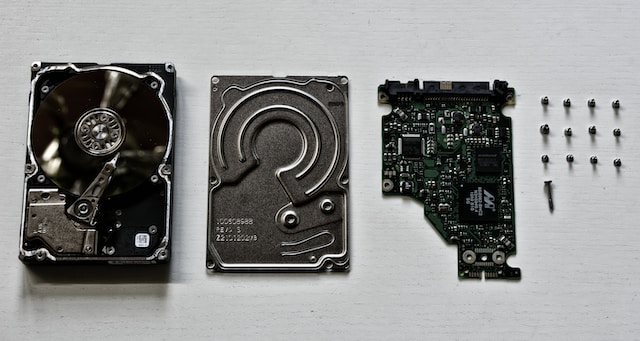
If none of these solutions have worked, there may be an issue with the external hard disk itself. It is possible that the hard disk has become damaged, or that the partition table has become corrupted. In this case, you may need to use a data recovery tool to retrieve any important files from the hard disk.
Here are some additional steps you can take to diagnose and fix the issue:
- Check if the external hard disk is visible in the Disk Management utility. To access Disk Management, right-click on the Windows Start menu and select “Disk Management.” Look for the external hard disk in the list of available disks. If it is visible, but not assigned a drive letter, right-click on the disk and select “Change Drive Letter and Paths.” Assign a new drive letter to the disk and see if it is now visible in File Explorer.
- Try connecting the external hard disk to a different computer. This will help you determine if the issue is with the hard disk or your computer. If the hard disk is visible on another computer, it may be an issue with your computer’s USB ports or drivers.
- Run a virus scan on your computer. Some viruses can affect the functioning of external hard disks, so it’s important to rule out this possibility. Use a reputable antivirus program to scan your computer and remove any threats.
- If the external hard disk is still not detected, you may need to try a data recovery tool. These tools can help you retrieve data from a damaged hard disk. However, they can be expensive, so it’s important to weigh the cost of the tool against the value of the data you need to retrieve.
In conclusion, there are several reasons why an external hard disk may not be detected by your computer. The first step is to check the physical connection between the hard disk and your computer, and to make sure the device driver is up to date. If the issue persists, you may need to check the power supply, run a virus scan, or use a data recovery tool. It’s important to approach the issue systematically and try each solution in turn, as this will help you pinpoint the problem and find the best solution.