If your external hard disk is not detected by your computer, there could be several possible reasons why this is happening. Here are some potential solutions to try:
- Check the cables: Ensure that the cables connecting your external hard disk to your computer are properly connected and not damaged. Try using a different cable to see if the issue is resolved.
- Check the power supply: Ensure that your external hard disk is receiving adequate power. Try using a different power supply or plugging it into a different outlet to see if this resolves the issue.
- Check the drive in Disk Management: Windows users can check Disk Management by right-clicking the Windows icon and selecting Disk Management. If your external hard disk is not appearing in Disk Management, try the next solution.
- Check the device manager: Open Device Manager and check if your external hard disk is listed under Disk drives. If it’s not listed, try the next solution.
- Update drivers: If the drivers for your external hard disk are outdated or missing, it may not be detected by your computer. You can update the drivers by visiting the manufacturer’s website and downloading the latest drivers.
- Uninstall and reconnect the device: You can try uninstalling the device from the device manager and then reconnecting it to see if this resolves the issue.
- Assign a drive letter: If your external hard disk does not have a drive letter assigned to it, it may not be detected by your computer. You can assign a drive letter by opening Disk Management, right-clicking on the disk, and selecting Change Drive Letter and Paths.
- Run disk check: If your external hard disk has bad sectors or file system errors, it may not be detected by your computer. You can run a disk check by opening File Explorer, right-clicking on the disk, and selecting Properties > Tools > Check.
- Update firmware: If your external hard disk has outdated firmware, it may not be detected by your computer. You can update the firmware by visiting the manufacturer’s website and downloading the latest firmware.
- Try a different USB port: If your external hard disk is not detected by your computer, try plugging it into a different USB port to see if this resolves the issue.
- Try a different computer: If your external hard disk is still not detected by your computer, try plugging it into a different computer to see if the issue persists. This will help determine if the issue is with your external hard disk or your computer.
- Data recovery: If you are unable to access the data on your external hard disk, there may be data recovery software available that can help recover the lost data. However, this should only be attempted if you are comfortable with the process and understand the risks involved.
In summary, if your external hard disk is not detected by your computer, it could be due to a number of reasons such as cable issue, power supply issue, outdated drivers, no drive letter assigned, bad sectors or file system errors, outdated firmware, or hardware failure. Trying out the above solutions can help you fix the issue. If the issue persists, you may need to seek professional assistance.
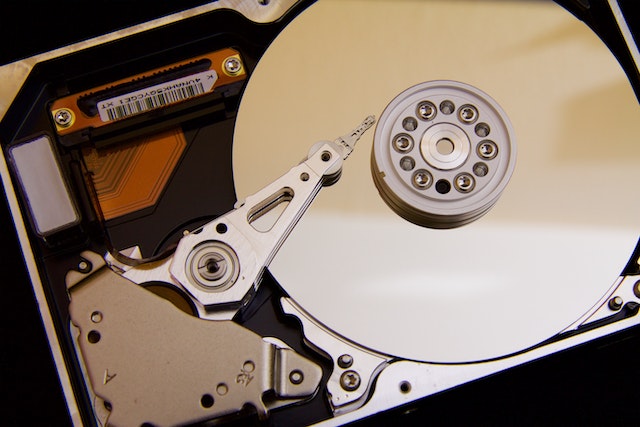
External Hard Disk is not Detected