An external hard drive is a device that allows users to store and access files on a separate disk drive that is connected to their computer via a USB or other interface. Sometimes, users may encounter an issue where the external hard drive is read-only, meaning they can view the files on the drive but are unable to modify, add or delete any files. There are a few potential causes for this issue, as well as some solutions that may help resolve the problem.
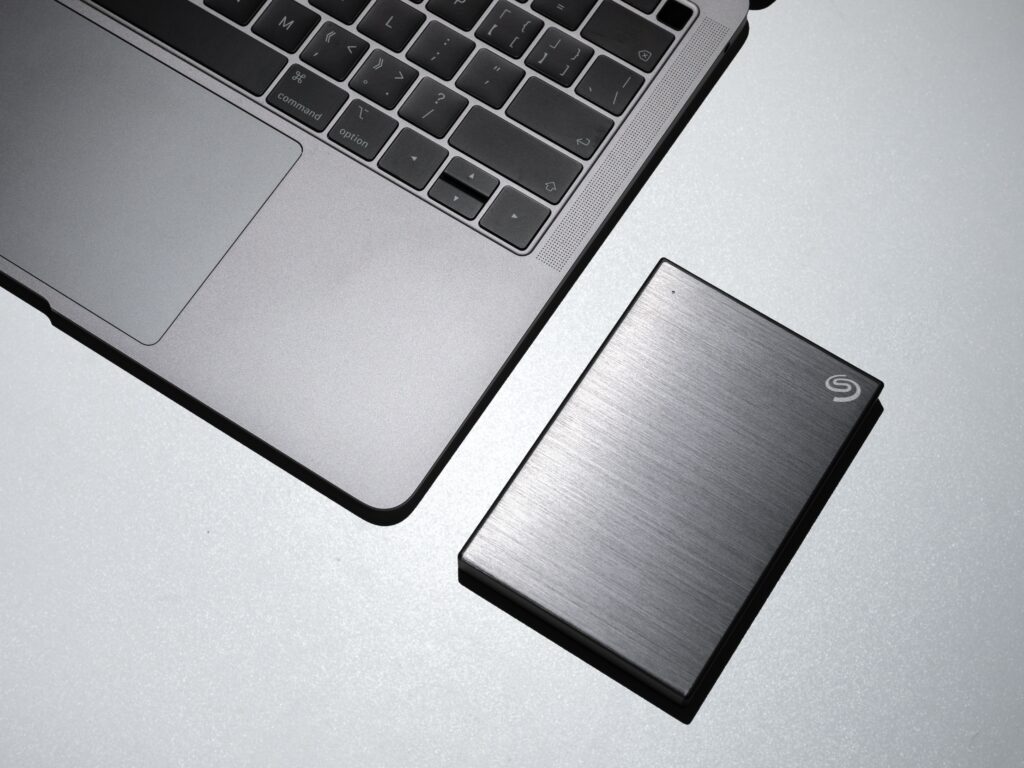
- File System Permissions One potential cause of an external hard drive being read-only is an issue with file system permissions. When a drive is connected to a computer, the operating system assigns permissions to files and folders on the drive to ensure that only authorized users can access them. If the permissions on the drive are set to “read-only,” then users will be unable to modify any files on the drive.
To check the permissions on a drive, right-click on the drive icon and select “Properties” from the context menu. From there, navigate to the “Security” tab and look for the “Permissions” section. If the permissions are set to “read-only,” then you can try changing them by clicking on the “Edit” button and selecting the appropriate permissions for your user account.
- Physical Write-Protection Switch Another possible cause of an external hard drive being read-only is a physical write-protection switch that is located on the drive itself. Some external hard drives have a switch that can be toggled to enable or disable write protection. If this switch is set to the “on” position, then the drive will be read-only.
To check if your drive has a write-protection switch, look for a small switch or button on the side or back of the drive. If you find one, try toggling it to the opposite position and see if that resolves the issue.
- Corrupted File System If the file system on the external hard drive is corrupted, then it may cause the drive to become read-only. A corrupted file system can occur due to a variety of reasons, such as improper ejection of the drive, power outages, or physical damage to the drive.
To check if the file system is corrupted, connect the external hard drive to your computer and open the Disk Utility tool. Select the external hard drive from the list of drives and click on the “First Aid” button to run a scan for any errors. If any errors are found, the tool will attempt to repair them automatically.
- Security Software Some security software may prevent users from modifying files on external hard drives as a security measure. This can be especially true if the security software is set to a high level of protection or if the drive is connected to a network that is being monitored.
To check if security software is causing the read-only issue, try temporarily disabling any security software that is running on your computer and see if that resolves the issue. If it does, you may need to adjust the settings of your security software to allow access to the external hard drive.
- Faulty Cable or Port Finally, a faulty cable or port can cause the external hard drive to become read-only. If the cable or port is damaged, then it may not be able to transmit data properly, which can cause issues with write access to the drive.
To check if the cable or port is the issue, try connecting the external hard drive to a different port or using a different cable. If the drive works normally after doing so, then you know that the cable or port was the problem.
In conclusion, there are several potential causes for an external hard drive to become read-only, but fortunately, there are also several solutions that can help resolve the issue.