When you want to use an external hard drive to store data, you need to format it first. Formatting involves creating a file system on the drive that your operating system can use to read and write data. Keep in mind that formatting will erase all data on the drive, so make sure to back up your files before proceeding.
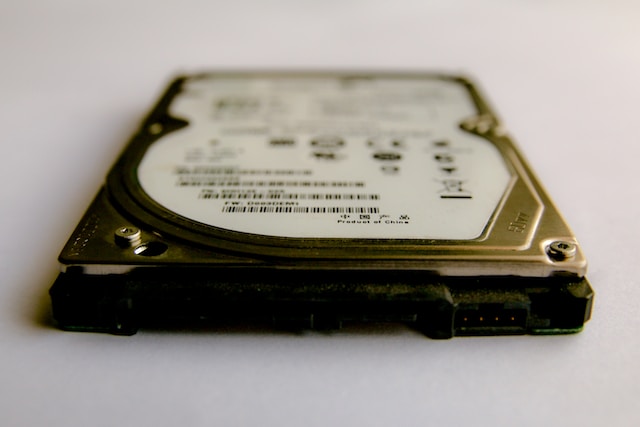
There are different types of file systems you can use to format an external hard drive. The most common ones are NTFS, FAT32, and exFAT. Your choice of file system will depend on your needs and the devices you plan to use the drive with. In this article, we’ll explain how to format an external hard drive using NTFS or exFAT on a Windows 10 computer.
How to Format an External Hard Drive in Windows 10
- Connect your external hard drive to your computer using a USB cable. Make sure your computer recognizes the drive.
- Open File Explorer either by pressing the Windows key and E on your keyboard or by clicking on the File Explorer icon on your taskbar.
- In the left pane of File Explorer, you should see your external hard drive listed under “This PC” or “Computer.” Right-click on the drive and select “Format” from the context menu.
- In the Format window, you’ll see options to configure the file system, allocation unit size, and volume label. You can leave the allocation unit size to the default value, which is usually “Default Allocation Size.” This value determines how much space is used to store data on the drive, and the default value is usually fine.
- Choose the file system you want to use for your external hard drive. If you’re only going to use the drive on Windows computers, we recommend using NTFS because it offers better performance and supports larger file sizes than FAT32. If you’re going to use the drive on both Windows and macOS computers, we recommend using exFAT because it’s compatible with both operating systems and supports larger file sizes than FAT32.
- Give your drive a volume label if you want to give it a specific name. This name will be displayed in File Explorer, which can help you identify the drive if you have multiple external drives connected to your computer.
- Click on the “Start” button to begin the formatting process. This process may take several minutes, depending on the size of your drive and the speed of your computer.
- Once the formatting process is complete, you’ll see a message indicating that your drive has been formatted successfully. Click on the “Close” button to exit the Format window.
Tips for Formatting an External Hard Drive
- Before you format your drive, make sure to back up any important data as the process will erase all data on the drive.
- Choose the file system that best suits your needs and the devices you plan to use the drive with. NTFS is recommended for Windows-only use, while exFAT is recommended for use on both Windows and macOS.
- If you plan to use your drive for backup purposes, consider creating multiple partitions on the drive and formatting each partition with a different file system. This will allow you to use the same drive for different purposes, such as storing files and backing up data.
- If you experience any issues with your drive after formatting, such as slow performance or errors when accessing files, try running a disk check to identify and repair any errors on the drive.
- Keep your external hard drive clean and free from dust and dirt to ensure optimal performance and longevity.
In conclusion, formatting an external hard drive is a straightforward process that can be done in a few easy steps. By choosing the right file system and taking proper care of your drive, you can ensure that it performs well and lasts for years to come.