When your external hard drive is not showing up on your computer, it can be a frustrating experience. However, there are several reasons why this might be happening and several potential solutions that you can try. In this article, we’ll discuss the most common reasons why an external hard drive might not be showing up and provide some tips on how to fix the issue.
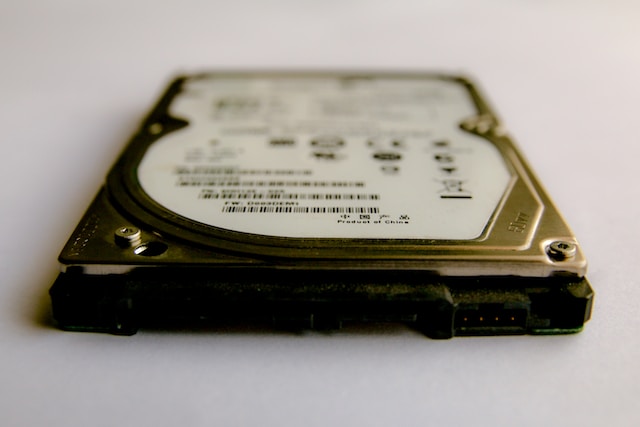
- Check the Connections
The first and most obvious thing to check when an external hard drive isn’t showing up is the connections. Ensure that the USB or power cables are securely connected to both the hard drive and the computer. You can try unplugging and replugging in the cables or try different USB ports on your computer to see if that makes a difference.
- Restart the Computer
Sometimes, the issue with your external hard drive might be due to a glitch in the system. In such cases, restarting the computer can often fix the problem. Save any important work, shut down the computer, disconnect the external hard drive, and then start the computer again. Once it’s up and running, reconnect the external hard drive and see if it shows up.
- Check Disk Management
If your external hard drive still isn’t showing up, you should check Disk Management. To do this, right-click on the Windows Start button and select Disk Management. Here, you’ll be able to see a list of all the drives connected to your computer, including your external hard drive. If you can see the drive listed, but it’s not showing up in File Explorer, then it might be a problem with the drive letter assignment.
- Assign a Drive Letter
If your external hard drive is listed in Disk Management but isn’t showing up in File Explorer, you can try assigning it a drive letter. To do this, right-click on the drive and select Change Drive Letter and Paths. Here, click Add and then choose a letter for the drive. Once you’ve assigned a letter, the drive should show up in File Explorer.
- Update Drivers
If your external hard drive is still not showing up, it might be a driver issue. You can try updating the drivers to see if that fixes the problem. To do this, go to Device Manager, find your external hard drive under Disk Drives, right-click on it and select Update Driver. If there’s a new driver available, it will be downloaded and installed automatically.
- Check for Errors
If none of the above solutions work, then there might be some errors on the hard drive itself. You can check for errors by running a disk check. To do this, right-click on the drive in File Explorer and select Properties. Then, go to the Tools tab and click on Check under the Error Checking section. This will scan the drive for any errors and attempt to fix them.
- Format the Drive
If all else fails, you might need to format the drive. This will erase all the data on the drive, so make sure you’ve backed up anything important before proceeding. To format the drive, right-click on it in File Explorer and select Format. Choose the file system you want to use (usually NTFS for Windows) and then click Start. Once the formatting is complete, the drive should show up in File Explorer.
In conclusion, there are several reasons why an external hard drive might not be showing up on your computer. The most common reasons are loose connections, drive letter assignment issues, driver problems, and errors on the hard drive itself. By following the steps outlined above, you should be able to troubleshoot the issue and get your external hard drive working again.