A hard drive is an essential component of a computer system that stores all the digital data, including the operating system, programs, and personal files. When a hard drive stops working, it can be a frustrating and daunting experience. However, it’s essential to stay calm and take necessary steps to diagnose and fix the issue. In this answer, we’ll discuss the possible reasons why a hard drive stops working and how to troubleshoot it.
Possible reasons why a hard drive stops working:
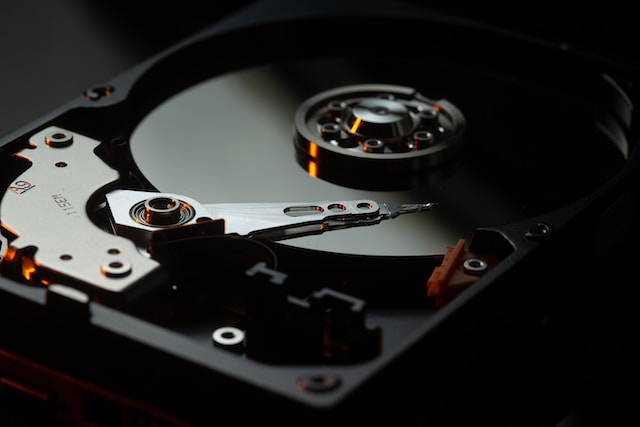
- Mechanical failure: A hard drive is a mechanical device that has moving parts, including a spinning disk and read/write heads. If any of these components fail or become damaged, the hard drive may stop working. For instance, the read/write heads may crash onto the disk, causing scratches or physical damage.
- Electronic failure: A hard drive also has electronic components that control the motor, read/write heads, and data transfer. If any of these electronic components fail or become damaged, the hard drive may stop working.
- Firmware corruption: The firmware is a program that controls the hard drive’s operation, including disk management, error correction, and performance optimization. If the firmware becomes corrupted, the hard drive may stop working correctly.
- Logical failure: A logical failure occurs when the hard drive’s file system becomes corrupt, making it impossible to access the data stored on the disk. This can happen due to software bugs, viruses, or user error, such as accidentally deleting critical system files.
How to troubleshoot a hard drive that stopped working:
- Check the connections: The first step is to check the hard drive’s connections to ensure that it’s properly connected to the motherboard and power supply. Check the SATA or IDE cable and power cable to make sure they’re not loose or damaged.
- Listen for sounds: When you turn on the computer, listen for any unusual sounds, such as clicking, grinding, or buzzing. These sounds may indicate a mechanical failure, such as a damaged read/write head or motor.
- Check the BIOS: If the hard drive isn’t detected in the BIOS, it may indicate a connection or electronic failure. Access the BIOS setup utility and check if the hard drive is listed in the boot order or storage device list.
- Use diagnostic software: Many hard drive manufacturers provide diagnostic software that can detect and repair various issues. You can download and run the software to test the hard drive’s health and identify any errors.
- Try data recovery software: If the hard drive’s file system is corrupt, you may be able to recover the data using data recovery software. These tools can scan the disk for deleted or lost files and recover them to a different location.
- Replace the hard drive: If none of the above steps work, it may be necessary to replace the hard drive. You can purchase a new hard drive and install the operating system and other programs to get your computer up and running again.
In conclusion, a hard drive can stop working due to various reasons, including mechanical failure, electronic failure, firmware corruption, or logical failure. Troubleshooting a hard drive that stopped working involves checking the connections, listening for sounds, checking the BIOS, using diagnostic software, trying data recovery software, or replacing the hard drive. It’s essential to stay calm and not panic when a hard drive stops working and follow the necessary steps to diagnose and fix the issue.