The hard drive is an important part of a computer that is necessary for storing and accessing data. In particular, Windows relies heavily on hard drives for its operation, as it requires a stable and efficient storage medium to function correctly.
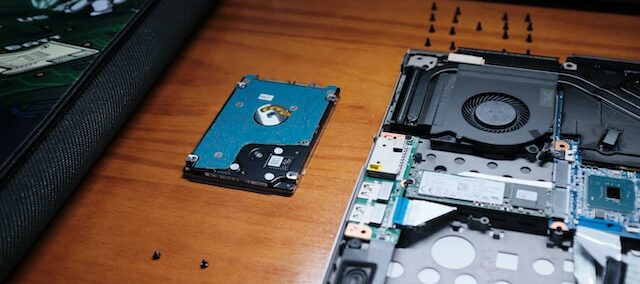
There are two types of hard drives available for Windows computers: Hard Disk Drives (HDDs) and Solid State Drives (SSDs). HDDs use rotating disks to store and access data, while SSDs use flash memory for the same purpose. Both types of drives have their advantages and disadvantages, so choosing the right one depends on your needs.
HDDs are cheaper and offer more storage capacity than SSDs, making them ideal for users who need lots of storage space. However, they are slower and less reliable than SSDs, which are faster and more reliable but more expensive and with less storage capacity.
When selecting a hard drive for Windows, it’s important to consider the size, speed, and reliability of the drive. The size of the drive should depend on the amount of data you need to store. A larger drive is preferable if you need to store a lot of data, while a smaller drive is enough if you only need to store a few files.
The speed of the drive is also critical. A faster drive will improve the overall performance of your system and reduce the time it takes to load files and applications. If you are using an HDD, you should choose one with a higher RPM (Revolutions Per Minute) to increase the drive’s speed. If you are using an SSD, look for one with a higher read/write speed to improve performance.
The reliability of the drive is another important factor to consider. A reliable drive ensures that your data is safe and secure. If you’re using an HDD, opt for one with a longer warranty period, as this is a sign of its reliability. If you are using an SSD, select one with a high TBW (Terabytes Written) rating, indicating how much data can be written to the drive before it fails.
Apart from selecting the right type of hard drive, there are some best practices that you can follow to ensure optimal performance. One of the best practices is to avoid filling up the drive to its maximum capacity, as it slows down and reduces performance. Experts recommend that you keep at least 10% of the drive’s capacity free for optimal performance.
Another best practice is to regularly defragment the drive, which rearranges the data on the drive and improves its performance. Experts advise defragmenting your drive at least once a month to maintain its smooth operation.
In conclusion, the hard drive is a critical component in Windows computers, and choosing the right one is essential for optimal performance. Whether you opt for an HDD or an SSD, make sure to consider the size, speed, and reliability of the drive.