If your hard drives are not being detected by your computer, it can be a frustrating and confusing issue to troubleshoot. There are a few different potential causes and solutions to this problem, which we’ll explore in this answer.
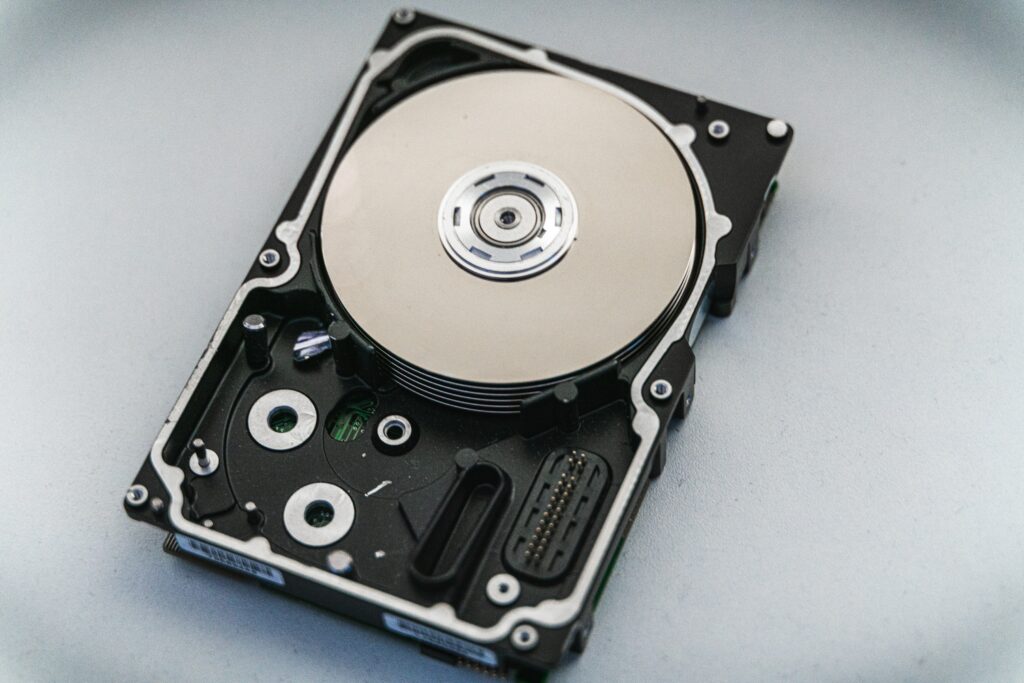
- Check the cables and connections
One of the most common reasons for hard drives not being detected is loose or faulty cables and connections. Check that the power cable and data cable are securely connected to the hard drive and the motherboard. If you’re using a SATA hard drive, make sure the data cable is plugged into the correct SATA port on the motherboard.
- Check the BIOS settings
The BIOS (Basic Input/Output System) is a program that runs on your computer’s motherboard and controls the hardware. If your hard drive is not detected by the BIOS, it won’t show up in Windows either. Check the BIOS settings to make sure that the hard drive is enabled and set as the primary boot device. To access the BIOS, restart your computer and press the key specified on the screen during the startup process (usually F2 or Del).
- Partition and format the hard drive
If the hard drive is brand new or has never been used before, it may need to be partitioned and formatted before it can be detected by the computer. To do this, open Disk Management in Windows (press Windows key + X and select Disk Management), and locate the new hard drive. Right-click on it and select “New Simple Volume” to start the partitioning and formatting process.
- Test the hard drive
If the hard drive is physically damaged or malfunctioning, it may not be detected by the computer. You can test the hard drive using a tool like CrystalDiskInfo, which will give you information about the hard drive’s health and performance. If the tool shows that the hard drive has errors or is in bad condition, you may need to replace it.
- Update drivers and firmware
Outdated drivers and firmware can also cause hard drives to not be detected. Check the manufacturer’s website for updates to the drivers and firmware for your motherboard and hard drive. Install any available updates and restart your computer.
- Use a different SATA port or cable
If the SATA port or cable that you’re using is faulty, it can cause the hard drive to not be detected. Try using a different SATA port or cable to see if the hard drive is detected.
In conclusion, there are several potential causes and solutions for hard drives not being detected. By checking the cables and connections, BIOS settings, partitioning and formatting, testing the hard drive, updating drivers and firmware, and using different SATA ports and cables, you should be able to troubleshoot and solve this problem.