If you have a Vizio TV that is speaking out what’s happening on the screen, it’s most likely due to the accessibility settings being turned on. The audio description, or narration, is intended to aid those with visual impairments in understanding what’s going on, but if it’s bothersome or unnecessary, you can disable it. Here’s how:
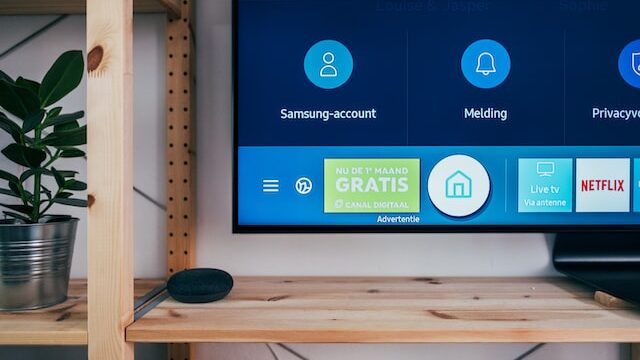
- Locate the accessibility settings: Look for an icon or menu item labeled “Accessibility,” “Audio Description,” or “Visually Impaired” in the TV’s main menu. The location of these settings may vary depending on your Vizio TV model.
- Turn off audio description: Once you’re in the accessibility settings, search for the option to disable audio description. It could be labeled as “Audio Description,” “Descriptive Audio,” or “Narration.” Choose this option to disable the narration.
- Adjust other accessibility settings: You may want to adjust other settings in the accessibility settings menu that could be causing the narration. For example, the “Closed Captioning” feature can trigger narration, so make sure it’s turned off if you don’t require it.
- Save your changes: After making any necessary changes to the accessibility settings, save them. This may entail clicking on a “Save” or “Apply” button or navigating away from the settings menu. The narration should be disabled once you’ve saved your changes.
If you’re still experiencing issues disabling the narration, try these additional tips:
- Consult the TV manual: Refer to the manual for your TV if you’re unsure where to find the accessibility settings or are experiencing difficulty disabling the narration. The manual should have detailed instructions on how to access and change the settings.
- Contact Vizio support: If you’re still having issues after reading the manual, contact Vizio support for assistance. They may be able to help you disable the narration or troubleshoot other problems you’re having with your TV.
- Try a factory reset: If all else fails, try a factory reset on your Vizio TV. This will erase all of the settings on the TV and restore it to its original state. To perform a factory reset, go to the TV’s menu and select “System” or “Reset.” Follow the on-screen instructions to complete the reset. Note that this will erase all of your saved settings, so make sure to back up any important data before proceeding.
To summarize, if your Vizio TV is narrating, it’s most likely due to the accessibility settings being turned on. To disable the narration, go to the accessibility settings and select the option to turn off audio description. If you’re still having trouble, consult the TV manual, contact Vizio support, or try a factory reset. With these tips, you should be able to enjoy your TV without any unnecessary narration.