AirPods are a popular wireless headphone accessory from Apple. If you’ve recently purchased a used pair of AirPods, you may find that the previous owner’s name is still showing up in the Bluetooth settings on your device. Fortunately, it’s relatively easy to remove the previous owner from AirPods, and in this article, we’ll guide you through the process step-by-step.
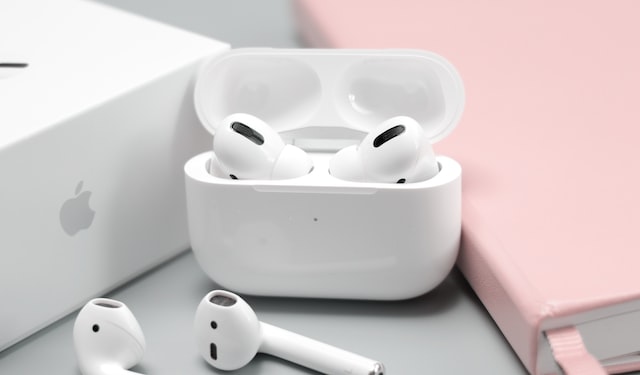
Before we begin, it’s worth noting that AirPods are designed to automatically connect to the devices associated with the Apple ID used to set them up. This means that if the previous owner has not reset the AirPods, they will still be associated with their Apple ID and will automatically connect to any device signed in with that Apple ID. Therefore, it’s important to remove the previous owner and reset the AirPods to ensure that they are fully yours and cannot be accessed by anyone else.
Step 1: Check the AirPods’ Firmware Version
Before proceeding, it’s important to make sure that your AirPods are running firmware version 3.7.2 or later. If you’re not sure what firmware version your AirPods are running, here’s how to check:
- Make sure your AirPods are connected to your iPhone or iPad.
- Open the Settings app on your device and tap on General.
- Scroll down and tap on About.
- Scroll down to your AirPods and check the version number next to Firmware Version.
If your AirPods are running an older firmware version, you’ll need to update them before proceeding. To update your AirPods, follow these steps:
- Make sure your AirPods are connected to your iPhone or iPad.
- Place your AirPods in their charging case and make sure the case is charging.
- Make sure your iPhone or iPad is connected to the internet and has sufficient battery life.
- Open the lid of the AirPods charging case.
- Hold the button on the back of the case until the light on the front starts flashing white.
- Your AirPods will now update automatically. This process can take up to 15 minutes.
Step 2: Reset Your AirPods
To remove the previous owner from your AirPods, you’ll need to reset them. Here’s how:
- Place your AirPods in their charging case and close the lid.
- Press and hold the button on the back of the case until the light on the front starts flashing amber.
- Release the button.
- Wait a few seconds until the light on the front starts flashing white.
- Your AirPods are now reset and ready to be paired with your device.
Step 3: Pair Your AirPods With Your Device
Now that your AirPods are reset, you’ll need to pair them with your device. Here’s how:
- Open the lid of your AirPods charging case.
- Hold the button on the back of the case until the light on the front starts flashing white.
- Your AirPods should now appear in the list of available Bluetooth devices on your device. Tap on your AirPods to connect to them.
- Follow the on-screen instructions to complete the pairing process.
Step 4: Rename Your AirPods
By default, your AirPods will be named after the previous owner’s name. To rename them, follow these steps:
- Make sure your AirPods are connected to your device.
- Open the Settings app on your device and tap on Bluetooth.
- Tap on the “i” icon next to your AirPods.
- Tap on the Name field and enter a new name for your AirPods.
- Tap on Done to save