Activating a hard drive is a critical part of setting up a computer system. In order to activate a hard drive, there are several steps that need to be taken. In this article, we will provide a detailed guide on how to activate a hard drive.
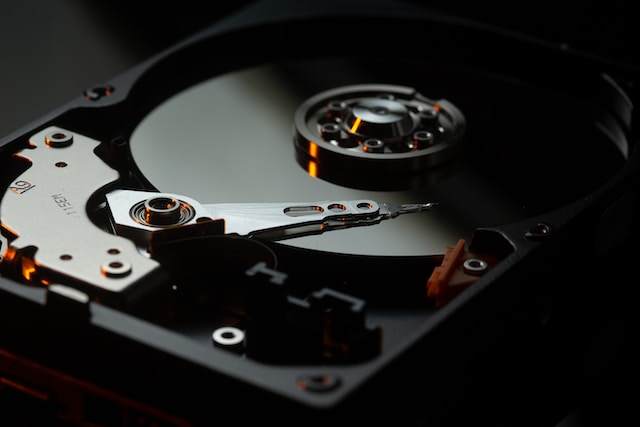
Step 1: Connect the Hard Drive
The first step to activating a hard drive is to connect it to your computer. Before you do this, make sure that your computer is turned off and unplugged from the power supply. Once this is done, you can open up the computer case and locate the hard drive bay. The hard drive bay is typically located at the bottom of the case and is a rectangular slot.
To connect the hard drive, you need to insert it into the bay and connect it to the motherboard using a SATA cable. The SATA cable should be connected to the SATA port on the motherboard and the corresponding port on the hard drive. Make sure that the SATA cable is securely connected at both ends.
Step 2: Power Up the Hard Drive
Once the hard drive is connected to the motherboard, the next step is to power it up. To do this, you need to connect a power cable to the hard drive. The power cable is typically a 4-pin Molex connector that connects to the power supply.
Make sure that the power cable is securely connected to the hard drive and the power supply. Once this is done, you can turn on the computer.
Step 3: Access the BIOS
After the computer has booted up, you need to access the BIOS. The BIOS is a program that controls the basic functions of the computer, such as the boot sequence and hardware settings.
To access the BIOS, you need to press a key on your keyboard during the boot up process. The key that you need to press will depend on your computer’s manufacturer, but it is typically one of the following keys: F1, F2, F10, or Del. The key that you need to press will be displayed on the screen during the boot up process.
Step 4: Configure the Hard Drive
Once you have accessed the BIOS, you need to configure the hard drive. To do this, you need to navigate to the “Storage” or “Advanced” tab in the BIOS.
In the “Storage” or “Advanced” tab, you should see a list of all the storage devices that are connected to your computer. Locate the hard drive that you want to activate and select it.
Once you have selected the hard drive, you need to configure it. The settings that you need to configure will depend on your specific computer and hard drive, but typically you will need to set the hard drive to “Enabled” or “Auto.”
Step 5: Save and Exit the BIOS
After you have configured the hard drive, you need to save the changes and exit the BIOS. To do this, navigate to the “Save and Exit” tab in the BIOS and select “Save Changes and Exit.”
Once you have saved the changes and exited the BIOS, your hard drive should be activated and ready to use.
In conclusion, activating a hard drive involves connecting it to your computer, powering it up, accessing the BIOS, configuring the hard drive, and saving and exiting the BIOS. By following these steps, you should be able to activate your hard drive without any problems.