Adding apps to an older Sharp Smart TV can be a bit challenging, as these models may not support the latest operating systems or app stores. However, there are a few methods you can try to add apps to your TV. Here are some steps you can follow:
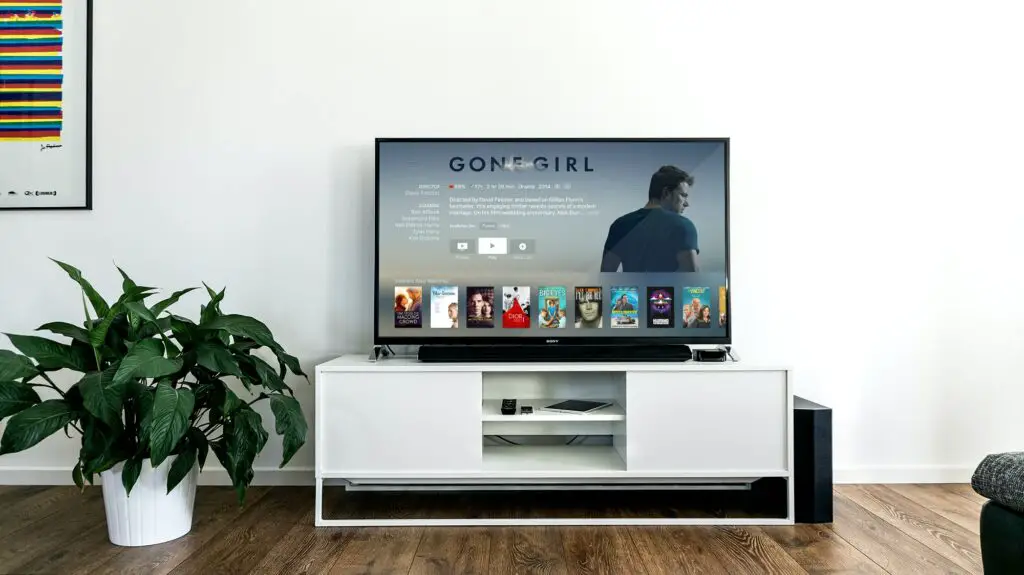
- Check if your TV is compatible with an app store: Not all older Sharp Smart TVs support app stores. To check if your TV has an app store, go to the home screen and look for an icon labeled “Apps” or “Smart Central”. If you don’t see this option, your TV may not have an app store.
- Connect your TV to the internet: To download and install apps, you’ll need to connect your TV to the internet. You can do this by connecting an Ethernet cable to the TV or using the TV’s built-in Wi-Fi.
- Use a third-party device: If your TV doesn’t have an app store or the app you want isn’t available on the store, you can use a third-party device like a streaming stick or a gaming console to access the app. Simply connect the device to your TV and download the app on the device.
- Side-load apps: If you can’t find the app you want on the app store or third-party devices, you can try side-loading the app. This involves downloading the app from a website and installing it on your TV. Here are the steps to side-load apps on your Sharp Smart TV:
- First, you need to enable “Unknown sources” on your TV. To do this, go to the TV’s settings menu and select “Security” or “Privacy”. Look for an option called “Unknown sources” and toggle it on.
- Next, download the app you want to side-load on your TV from a trusted website. Save the file to a USB drive.
- Connect the USB drive to your TV and open the file explorer app on your TV. Navigate to the USB drive and select the app file to install it on your TV.
Note: Side-loading apps can be risky as it can expose your TV to malware and viruses. Only download apps from trusted sources and always scan the files for viruses before installing them on your TV.
- Upgrade your TV’s operating system: If your Sharp Smart TV is running on an outdated operating system, you may not be able to download the latest apps. Check if there’s an option to upgrade your TV’s operating system in the settings menu. If not, contact Sharp support to see if there’s a firmware update available for your TV.
In conclusion, adding apps to an older Sharp Smart TV can be a bit tricky, but with these methods, you should be able to access some of your favorite apps on your TV. Remember to always check the compatibility of your TV and the apps you want to download before proceeding.
How to Add Apps to Older Sharp Smart TV?