Vizio TVs typically come with a V button on their remote control, which provides access to the Vizio SmartCast platform and allows you to add new apps to your TV. However, if your remote control is not working or if you don’t have the V button on your remote, there are still ways to add apps to your Vizio TV.
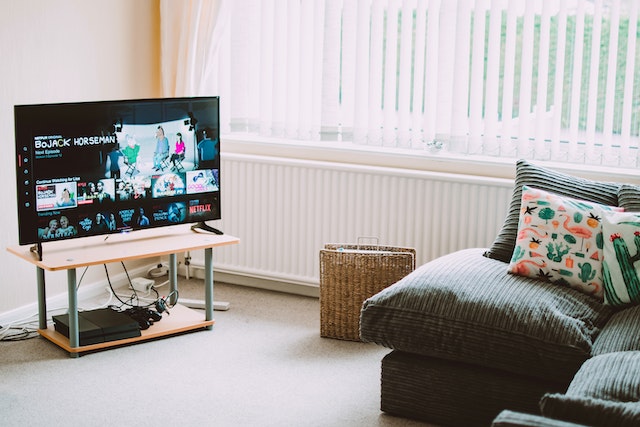
Here are a few methods you can use to add apps to your Vizio TV without using the V button:
- Use the Vizio SmartCast Mobile App The Vizio SmartCast Mobile app is available for both iOS and Android devices, and it allows you to control your Vizio TV and stream content directly from your smartphone or tablet. To add apps to your Vizio TV using the SmartCast Mobile app, follow these steps:
- Download the Vizio SmartCast Mobile app from the App Store or Google Play.
- Connect your smartphone or tablet to the same Wi-Fi network as your Vizio TV.
- Open the SmartCast Mobile app and tap the Menu icon in the upper-left corner of the screen.
- Select “Apps” from the menu, then scroll down to the “Featured” section or use the search function to find the app you want to install.
- Tap the app icon to open the app details page, then tap “Install” to download and install the app on your TV.
- Use the Chromecast Built-in feature Many Vizio TVs come with Chromecast Built-in, which allows you to stream content from your smartphone or tablet directly to your TV. If you have an app on your smartphone or tablet that supports Chromecast, you can use it to cast the app to your Vizio TV. To do this, follow these steps:
- Make sure your smartphone or tablet is connected to the same Wi-Fi network as your Vizio TV.
- Open the app on your smartphone or tablet that you want to cast to your TV.
- Look for the Chromecast icon in the app. It’s usually located in the upper-right corner of the screen.
- Tap the Chromecast icon and select your Vizio TV from the list of available devices.
- The app should now start playing on your TV.
- Use the AirPlay 2 feature If you have an iPhone or iPad, you can use the AirPlay 2 feature to stream content from your iOS device to your Vizio TV. To use AirPlay 2, follow these steps:
- Make sure your iPhone or iPad is connected to the same Wi-Fi network as your Vizio TV.
- Open the app on your iPhone or iPad that you want to stream to your TV.
- Look for the AirPlay icon in the app. It’s usually located in the upper-right corner of the screen.
- Tap the AirPlay icon and select your Vizio TV from the list of available devices.
- The app should now start playing on your TV.
- Use a third-party device If none of the above methods work for you, you can use a third-party device like a Roku, Amazon Fire TV Stick, or Apple TV to access apps on your Vizio TV. These devices connect to your TV’s HDMI port and provide access to a wide range of streaming apps. To use a third-party device with your Vizio TV, follow the device-specific instructions for setting it up and connecting it to your TV.
In conclusion, while the V button on the Vizio remote control makes it easier to access the SmartCast platform and add apps to your TV, there are still ways to add apps to your Vizio TV without using the V button. You can use the SmartCast Mobile app, Chromecast Built-in, AirPlay 2, or a third-party device to access apps on your TV.
How to Add Apps to Vizio TV Without V Button?