To add Peacock to your Samsung Smart TV, you can follow these steps:
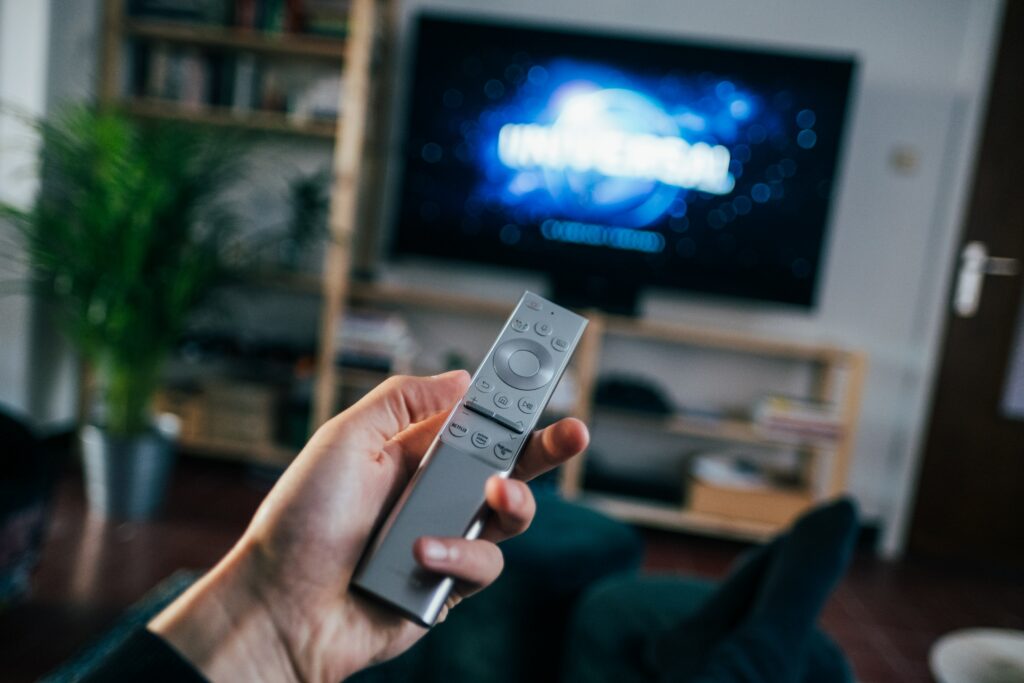
- Check compatibility: First, make sure that your Samsung Smart TV is compatible with the Peacock app. You can do this by checking the app store on your TV to see if Peacock is available for download.
- Install the app: If Peacock is available on your TV, you can install the app by following these steps: a. Press the Smart Hub button on your Samsung remote control. b. Navigate to the Apps tile and select it. c. Use the search function to search for the Peacock app. d. Select the app and click on Install. e. Wait for the app to download and install on your TV.
- Sign in to Peacock: Once the app is installed, you will need to sign in to your Peacock account to access its content. You can either sign up for a new account or sign in with your existing credentials.
- Troubleshooting: If you encounter any issues while installing or using the Peacock app on your Samsung Smart TV, you can try the following troubleshooting steps: a. Make sure that your TV is connected to the internet and that your internet connection is stable. b. Clear the cache and cookies of the Peacock app by going to Settings > Applications > Peacock > Clear Data/Cache. c. Restart your TV and try again.
- Enjoy the content: Once you have successfully installed and signed in to the Peacock app, you can start enjoying its content on your Samsung Smart TV.
It is important to note that the steps to add Peacock to your Samsung Smart TV may vary depending on the model of your TV and the version of the app. If you are still having trouble adding Peacock to your TV, you can refer to the user manual or contact Samsung customer support for assistance.
How to add Peacock to Samsung smart TV?