Blocking YouTube on your Samsung Smart TV is a practical way to limit exposure to the platform, particularly if you want to avoid distractions or inappropriate content. There are several ways to achieve this.
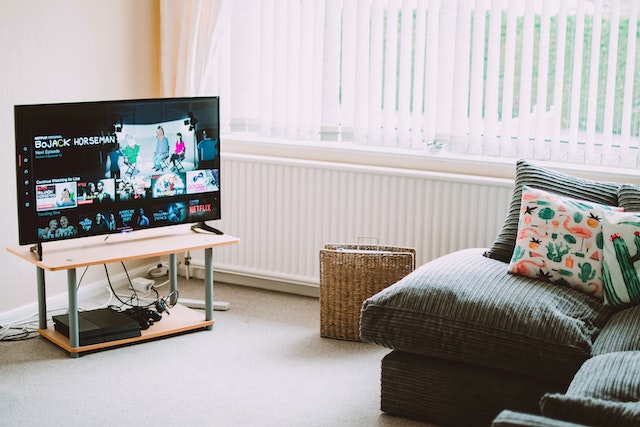
One way is to use parental controls, which come built into many Samsung Smart TVs. From the Settings menu, go to General and select Parental Controls. Set a PIN code and customize the restrictions for different users or profiles. To block YouTube specifically, search for it in the Apps menu and set a content rating limit or block it entirely.
Another option is to use a third-party app, such as Net Nanny. This subscription-based service allows you to set up custom filters and rules for your Samsung Smart TV. Download the app from the Samsung App Store, sign up for an account on their website, and create different profiles for different users. Then, set up specific restrictions for each one, including blocking the YouTube website or app.
You can also use your router settings to block YouTube for all devices connected to your home network, including your Samsung Smart TV. This method is more technical and may require some knowledge of your router’s configuration settings. Access your router’s admin panel and look for the content filtering or access control settings. From there, add YouTube to a blacklist or blocklist.
Finally, you can use a DNS filtering service like OpenDNS or CleanBrowsing to block YouTube for all devices on your home network. Sign up for an account and configure your router or individual devices. Then, create custom filters that block YouTube or other sites based on their category or domain.
In conclusion, there are different ways to block YouTube on your Samsung Smart TV. Choose a method that suits your preferences and helps you achieve your goals.