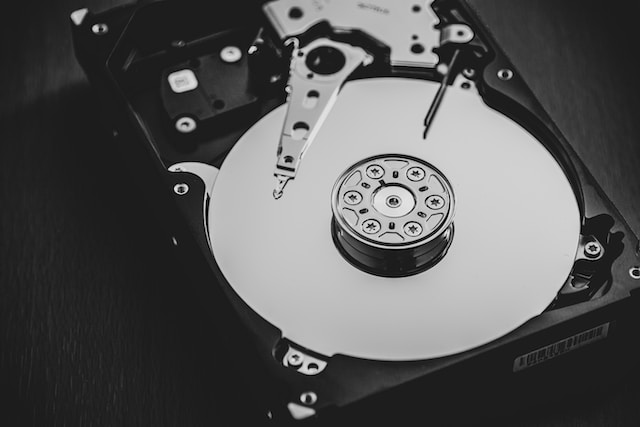
External hard drives, like their internal counterparts, can suffer from fragmentation over time. Fragmentation occurs when the data on a hard drive is broken up into smaller pieces and stored in different physical locations on the disk. This can slow down the performance of the drive as the disk has to work harder to access and retrieve the data. Defragmenting the drive can help to organize the data and speed up performance. In this article, we’ll explore how to defrag an external hard drive.
Step 1: Check the Drive for Errors Before you begin defragmenting your external hard drive, it’s important to ensure that the drive doesn’t have any errors that may prevent the process from completing successfully. To check for errors, follow these steps:
- Connect the external hard drive to your computer.
- Open Windows Explorer and right-click on the external hard drive.
- Select Properties from the drop-down menu.
- Click on the Tools tab.
- Under Error Checking, click on Check.
- If errors are found, follow the prompts to fix them.
Step 2: Use the Built-in Windows Defragmenter Windows comes with a built-in defragmentation tool that can be used to defrag an external hard drive. Follow these steps to use the tool:
- Connect the external hard drive to your computer.
- Open Windows Explorer and right-click on the external hard drive.
- Select Properties from the drop-down menu.
- Click on the Tools tab.
- Under Optimize and defragment drive, click on Optimize.
- Select the external hard drive and click on Analyze.
- If fragmentation is detected, click on Optimize.
Note: Depending on the size of the external hard drive and the level of fragmentation, the defragmentation process may take some time.
Step 3: Use Third-Party Defragmentation Software There are several third-party defragmentation software programs available that can be used to defrag an external hard drive. These programs can provide more advanced defragmentation options and may be more effective than the built-in Windows tool. Follow these steps to use a third-party defragmentation program:
- Download and install a third-party defragmentation program.
- Connect the external hard drive to your computer.
- Open the defragmentation program and select the external hard drive.
- Follow the prompts to begin the defragmentation process.
Note: Make sure to choose a reputable and trustworthy defragmentation program to avoid any potential security risks.
Step 4: Regular Maintenance To prevent fragmentation from occurring in the first place, it’s important to perform regular maintenance on your external hard drive. Here are some tips to help keep your drive in good shape:
- Keep the external hard drive clean and free from dust and debris.
- Avoid using the drive for temporary files or storing large amounts of data that are frequently accessed and modified.
- Keep the drive organized by creating folders and subfolders to help keep files organized and easy to find.
- Regularly delete unnecessary files and programs to free up space on the drive.
Conclusion Defragmenting an external hard drive can help to improve its performance and speed up data access times. By following the steps outlined in this article, you can effectively defrag your external hard drive and keep it running smoothly. Remember to perform regular maintenance on your drive to prevent fragmentation from occurring in the first place.