Vizio Smart TVs are internet-enabled devices that provide a variety of features and applications. To download apps for your Vizio TV, you can use the pre-installed Vizio Internet Apps Plus (VIA+) Store. Here’s a step-by-step guide on how to download apps for your Vizio TV.
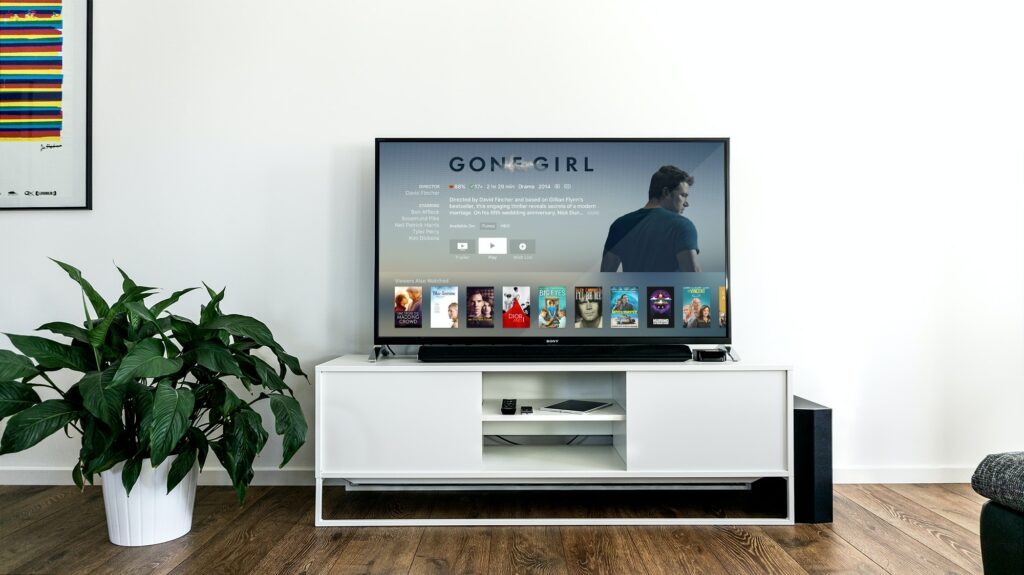
Step 1: Determine your Vizio TV Model You must determine your TV model before downloading apps because the procedure may differ depending on the model. Check the user manual or look at the back of your TV to find the model number.
Step 2: Connect to the Internet Ensure that your Vizio TV is connected to the internet using Wi-Fi or an Ethernet cable. To connect to Wi-Fi, go to Menu > Network > Wi-Fi Settings and select your Wi-Fi network. To connect using an Ethernet cable, connect one end to your TV and the other end to your router.
Step 3: Access the Vizio Internet Apps Plus (VIA+) Store Press the “V” button on your remote control to access the VIA+ menu. This menu provides access to various apps and features. Browse through different app categories and select the one you want to download.
Step 4: Browse and select the App The VIA+ Store has many apps, including popular ones like Netflix, Hulu, and Amazon Prime Video. Browse through various categories like Entertainment, Lifestyle, Games, and more. Once you find the app you want to download, select it and press “OK” on your remote.
Step 5: Download and Install the App Once you choose an app, you’ll be asked to download and install it. The download time will depend on the app’s size and your internet connection speed. Once the download is complete, the app will install automatically on your TV.
Step 6: Launch the App Once the app is installed, you can launch it by selecting it from the app tray or the VIA+ menu. To access the app tray, press the “V” button on your remote control and select the app tray icon. You can also use the app shortcut on your home screen to launch the app.
Step 7: Sign In (if required) Some apps require you to sign in with your credentials before you can use them. Follow the app’s instructions to sign in. You can use an existing account or create a new one.
In conclusion, downloading apps for your Vizio TV is easy. Just follow these steps to download, install, and launch apps on your TV.