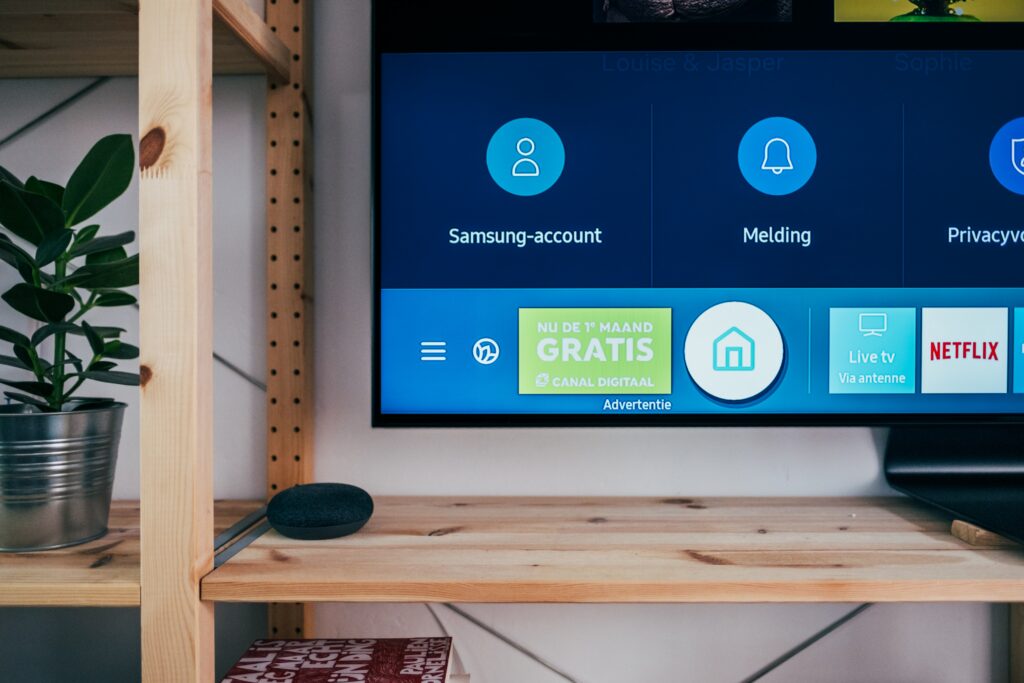
To download apps on your smart TV, the process may differ depending on the brand and model of your TV. Here is a general guide to follow:
- Check compatibility: Make sure your TV is compatible with the app you want to download. Not all apps are available on all platforms, so check your TV’s user manual or the manufacturer’s website to confirm compatibility.
- Connect to the internet: To download apps on your smart TV, connect it to the internet. Most smart TVs can connect via Wi-Fi or an Ethernet cable. Follow the instructions in your TV’s user manual to connect to the internet.
- Access the app store: Once your TV is connected to the internet, access the app store. Depending on your TV’s brand, it may be labeled “Smart Hub,” “Google Play,” “LG Content Store,” or “Samsung Apps.”
- Search for the app: Use the search bar in the app store to find the app you want to download. You can also browse through categories or featured apps. Once you’ve found the app you want to download, select it.
- Install the app: Once you’ve selected the app you want to download, follow the on-screen instructions to install it.
- Launch the app: After the app is installed, you can launch it from the app store or your TV’s home screen. Follow any further instructions to set up the app, and enjoy your new app on your smart TV!
- Manage your apps: After downloading apps on your smart TV, you may want to manage them. You can usually do this from the app store or settings menu on your TV. You may be able to uninstall apps, update apps, or move apps to a different location on your TV’s home screen.
In conclusion, downloading apps on a smart TV is relatively easy, but it may differ depending on your TV’s brand and model. By following the steps above, you should be able to download and enjoy your favorite apps on your smart TV.
How to download Apps on Smart TV?