If you have a Samsung smart TV, you may be interested in downloading the Peacock app to watch your favorite shows and movies. Here are the steps to download Peacock on your Samsung smart TV:
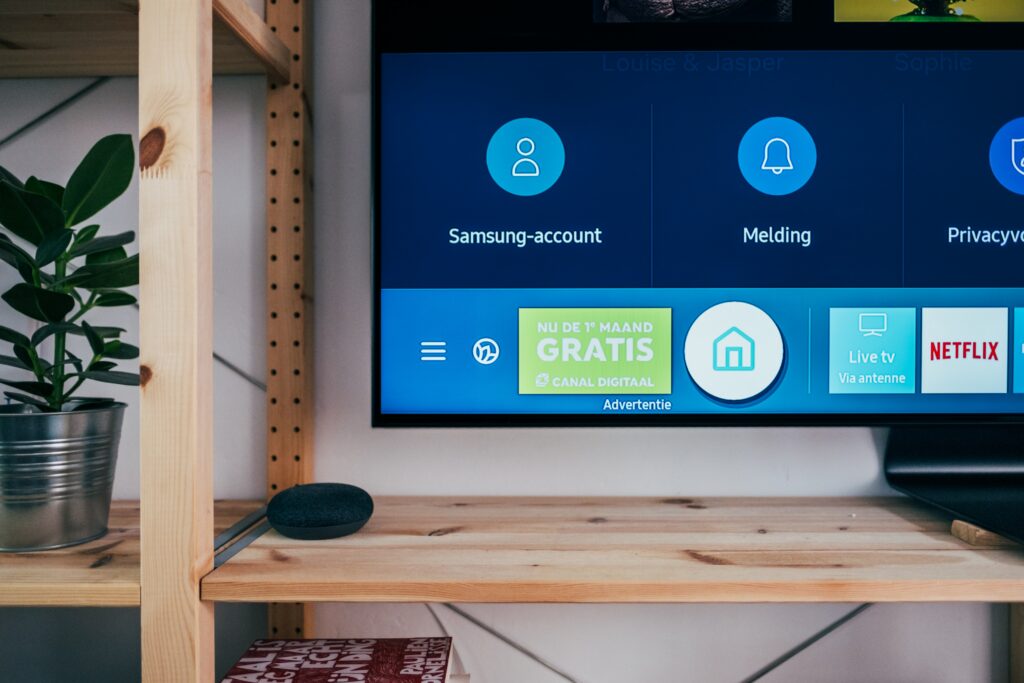
- Turn on your Samsung smart TV and navigate to the Samsung Smart Hub. You can access the Smart Hub by pressing the Home button on your Samsung remote.
- Once you are in the Smart Hub, navigate to the Apps section. You can find this section by scrolling left or right on your screen.
- Use the search function to search for the Peacock app. You can do this by clicking on the magnifying glass icon and typing “Peacock” into the search bar.
- Once you have found the Peacock app, click on the download button to start downloading it onto your Samsung smart TV.
- Wait for the Peacock app to finish downloading. This may take a few minutes depending on your internet connection.
- Once the app has finished downloading, click on the app to open it. You may need to sign in to your Peacock account or create a new account if you don’t already have one.
- Enjoy watching your favorite shows and movies on Peacock on your Samsung smart TV!
If you have trouble downloading the Peacock app on your Samsung smart TV, here are some troubleshooting tips to try:
- Check for updates: Make sure that your Samsung smart TV is updated to the latest version of its operating system. You can check for updates by going to Settings > Support > Software Update.
- Reset your TV: Try resetting your Samsung smart TV to its default settings. You can do this by going to Settings > General > Reset.
- Check your internet connection: Make sure that your Samsung smart TV is connected to the internet and that your internet connection is strong and stable.
- Contact Samsung support: If you are still having trouble downloading the Peacock app, you can contact Samsung support for further assistance.
By following these steps, you can easily download the Peacock app on your Samsung smart TV and start streaming your favorite content.
How to Download Peacock on Samsung Smart TV?