External hard drives are a popular way to store data, but sometimes they may not show up on a computer. This can be a frustrating experience, especially if you have important files stored on the drive. In this article, we will discuss some common reasons why an external hard drive may not show up and provide some troubleshooting steps to fix the issue.
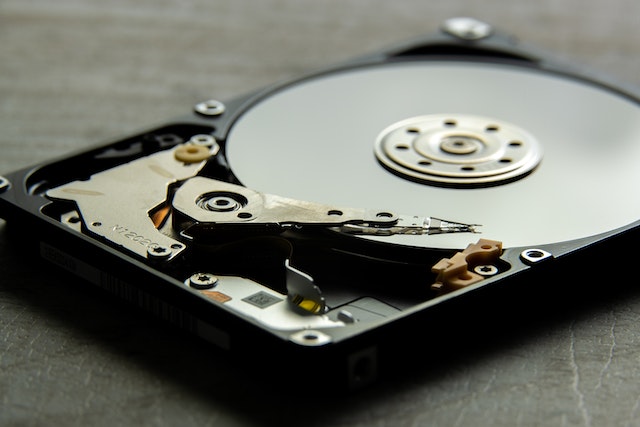
Reasons why an external hard drive may not show up
- Connection issues: If your external hard drive is not properly connected to your computer, it may not show up. Check that the cable is securely plugged in and that the power source is working correctly.
- Drive letter conflict: Sometimes, an external hard drive may not show up because of a drive letter conflict. This means that the drive letter assigned to the external hard drive is already in use by another device.
- Corrupt files: If the files on your external hard drive become corrupt, the drive may not show up on your computer.
- Outdated drivers: Outdated drivers can cause issues with external hard drives and other devices.
- Hardware issues: If your external hard drive has physical damage, it may not show up on your computer.
Troubleshooting steps to fix external hard drive not showing up
- Check connections: The first step in troubleshooting an external hard drive that is not showing up is to check the connections. Ensure that the cable is securely plugged in and that the power source is working correctly.
- Change drive letter: If there is a drive letter conflict, you can change the drive letter assigned to your external hard drive. To do this, right-click on “This PC” or “My Computer” and select “Manage.” In the Computer Management window, select “Disk Management” and find your external hard drive. Right-click on the drive and select “Change Drive Letter and Paths.” Choose a new drive letter and click “OK.”
- Update drivers: If your drivers are outdated, update them by going to the manufacturer’s website and downloading the latest version of the driver for your external hard drive.
- Run a virus scan: Sometimes, viruses can cause issues with external hard drives. Run a virus scan on your computer to ensure that it is free of viruses.
- Use Disk Management: If your external hard drive is not showing up in File Explorer, you can try accessing it through Disk Management. To do this, right-click on “This PC” or “My Computer” and select “Manage.” In the Computer Management window, select “Disk Management” and find your external hard drive. Right-click on the drive and select “Change Drive Letter and Paths.” Assign a new drive letter and click “OK.”
- Use Device Manager: If your external hard drive is not showing up in Disk Management, you can try accessing it through Device Manager. To do this, right-click on the Start button and select “Device Manager.” Find your external hard drive and right-click on it. Select “Uninstall device” and then unplug your external hard drive. Reconnect the external hard drive, and Windows should automatically detect it.
- Test the hard drive on another computer: If none of the above steps work, try connecting your external hard drive to another computer. If it works on the other computer, the issue may be with your computer’s hardware or software.
- Use data recovery software: If you have important data on your external hard drive that you cannot afford to lose, consider using data recovery software to recover your files. This software can scan your external hard drive and recover lost or deleted files.
Conclusion
External hard drives are a popular way to store data, but sometimes they may not show up on a computer. This can be due to connection issues, drive letter conflicts, corrupt files, outdated drivers, or hardware issues.
How to Fix External Hard Drive not showing up?