If you have a Samsung Smart TV and want to access Paramount+, the popular streaming service, you can do so in a few easy steps. Here’s a guide on how to get Paramount+ on your Samsung Smart TV:
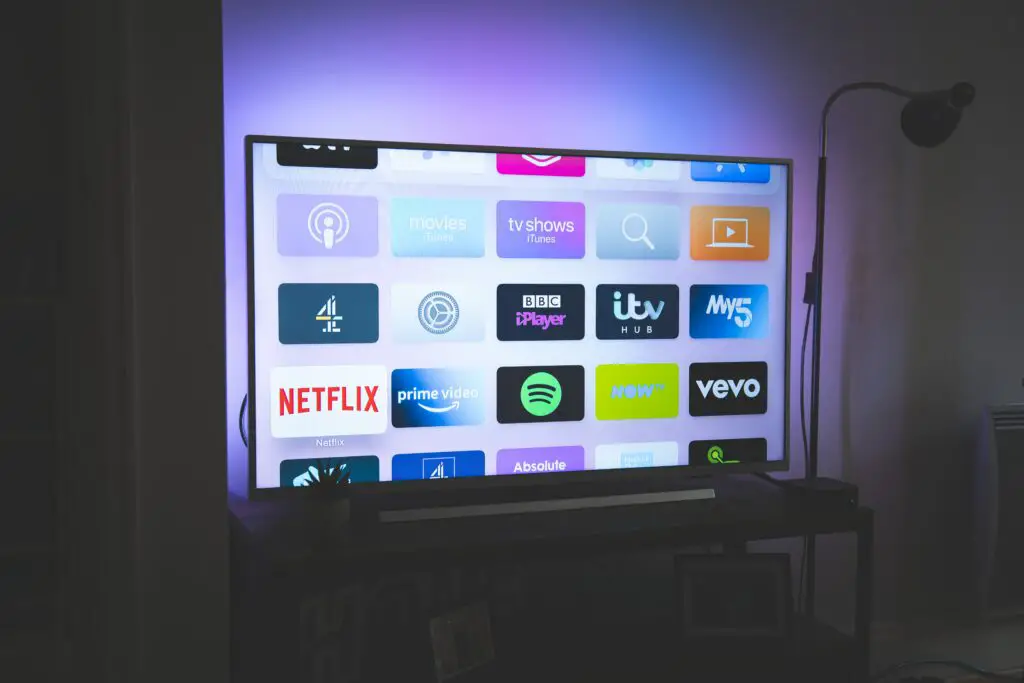
Step 1: Ensure your Samsung Smart TV is compatible
Before you start, you need to ensure that your Samsung Smart TV is compatible with the Paramount+ app. To check, visit the Samsung Smart Hub on your TV and look for the “Apps” button. Scroll down to “Paramount+” and see if it’s available. If it’s not available, you may need to update your TV’s firmware or check if there’s an available software update.
Step 2: Download the Paramount+ app
If the Paramount+ app is available on your Samsung Smart TV, the next step is to download it. Follow the steps below to download the app:
- Press the “Smart Hub” button on your Samsung Smart TV remote.
- Select the “Apps” option and search for “Paramount+” using the search function.
- Once you find the Paramount+ app, click on it and select the “Download” option.
Step 3: Sign in or sign up for Paramount+
Once you have downloaded the Paramount+ app on your Samsung Smart TV, you need to sign in or sign up for a new account. Follow the steps below to sign in or sign up:
- Open the Paramount+ app on your Samsung Smart TV.
- Select the “Sign In” option if you already have a Paramount+ account. Enter your email and password to sign in.
- Select the “Sign Up” option if you do not have a Paramount+ account. Follow the on-screen instructions to sign up for a new account.
Step 4: Start streaming
Once you have signed in or signed up for Paramount+, you can start streaming your favorite shows and movies. Navigate through the app’s home screen and select the content you want to watch. Use the directional buttons on your Samsung Smart TV remote to browse through the app.
Step 5: Troubleshoot issues
If you encounter any issues while downloading or using the Paramount+ app on your Samsung Smart TV, you can try the following troubleshooting steps:
- Check your internet connection: Ensure that your Samsung Smart TV is connected to a stable internet connection. If your internet connection is slow or unstable, it can cause issues while streaming.
- Restart your Samsung Smart TV: Sometimes, restarting your TV can solve any issues you may be experiencing with the Paramount+ app.
- Clear the app cache: Clearing the cache of the Paramount+ app can help solve any performance issues.
- Update the app: Ensure that you have the latest version of the Paramount+ app installed on your Samsung Smart TV. You can check for updates in the app store.
Conclusion
Getting Paramount+ on your Samsung Smart TV is a straightforward process. You need to ensure that your TV is compatible with the app, download the app, sign in or sign up, and start streaming. If you encounter any issues, follow the troubleshooting steps mentioned above to solve the problem. With these steps, you can easily access and enjoy your favorite shows and movies on Paramount+ from the comfort of your Samsung Smart TV.