Installing apps on a Samsung Smart TV can be done in a few simple steps. In this guide, we’ll walk you through the process of installing apps on your Samsung Smart TV, including how to find and download new apps from the Samsung App Store.
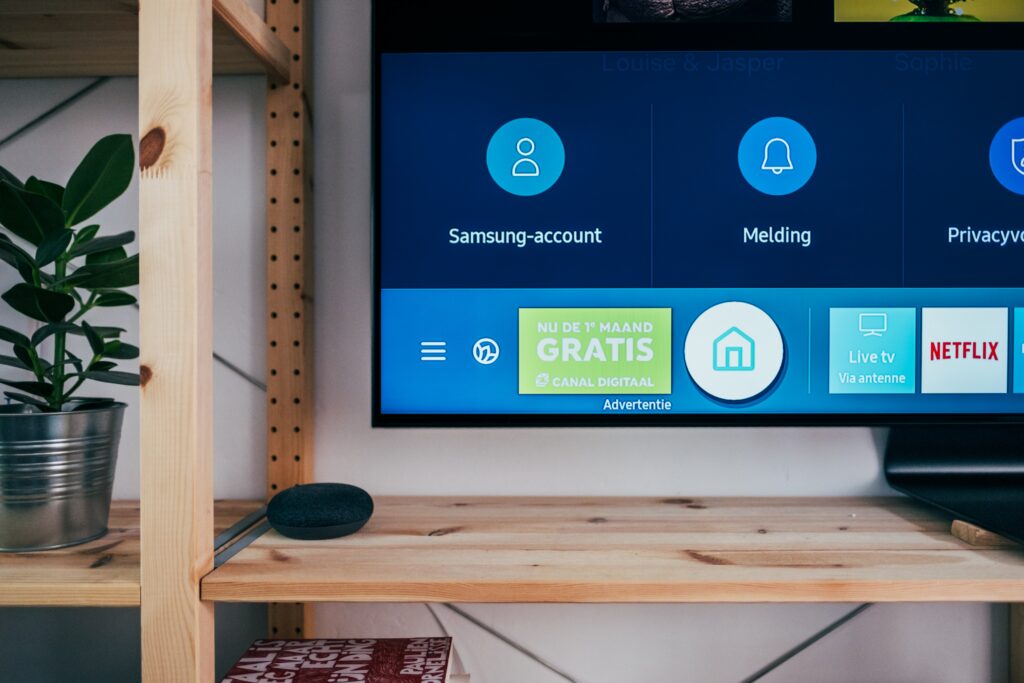
Step 1: Turn on your Samsung Smart TV and connect it to the internet Before you can install apps on your Samsung Smart TV, you’ll need to make sure it’s connected to the internet. You can do this by connecting your TV to your home Wi-Fi network or by connecting it to your router via an Ethernet cable.
Step 2: Open the Samsung App Store Once your TV is connected to the internet, navigate to the Samsung App Store by pressing the Smart Hub button on your remote control. This will open the main menu for your Samsung Smart TV.
Step 3: Browse for Apps In the Samsung App Store, you can browse through different categories of apps such as entertainment, news, sports, and games. You can also use the search function to find a specific app you’re looking for.
Step 4: Select the App Once you’ve found an app you want to download, select it to see more information about the app, including its rating, reviews, and a description of what it does.
Step 5: Download the App If you decide you want to download the app, select the “Download” button. The app will then begin downloading onto your Samsung Smart TV. Depending on the size of the app and your internet connection speed, the download process may take a few minutes.
Step 6: Install the App Once the app has finished downloading, it will automatically be installed on your Samsung Smart TV. You can then launch the app by selecting it from the main menu or by using the voice command feature on your remote control.
Step 7: Manage Your Apps Once you’ve downloaded and installed an app, you can manage it from the “My Apps” section of the Samsung App Store. From here, you can delete apps you no longer want or update apps to their latest version.
In conclusion, installing apps on a Samsung Smart TV is a straightforward process. With a few simple steps, you can browse through the Samsung App Store and download your favorite apps onto your TV. Whether you’re looking for entertainment, news, sports, or games, there are plenty of options available to enhance your viewing experience.