Switching PC cases can be a daunting task, but it’s not as difficult as you might think. Here’s a step-by-step guide on how to switch PC cases.
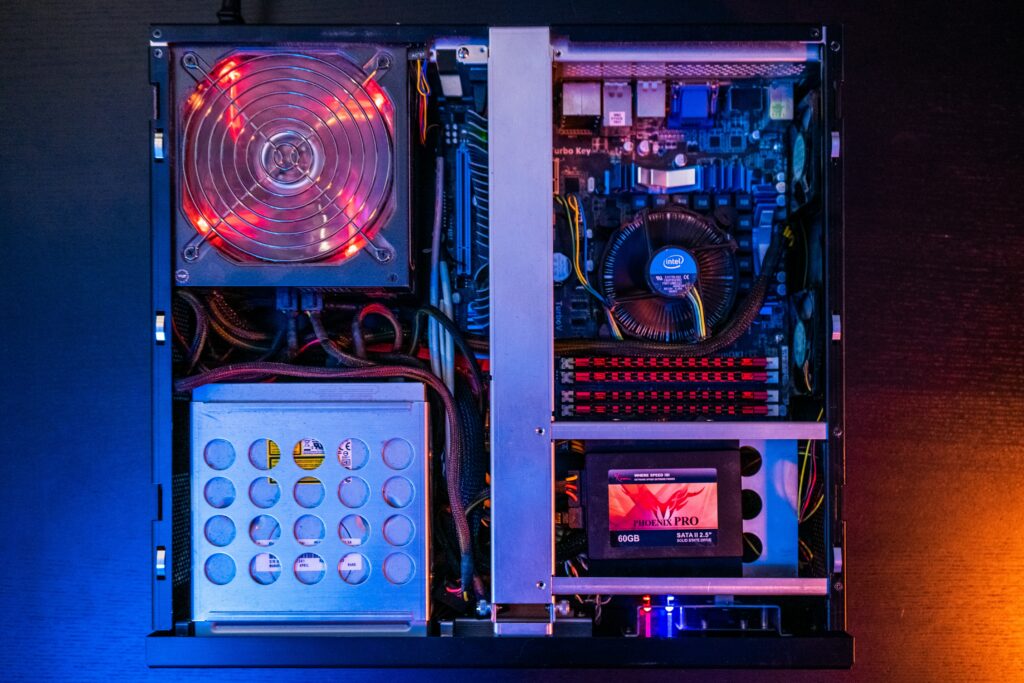
Step 1: Gather your tools and equipment Before you begin, make sure you have all the necessary tools and equipment. You will need a screwdriver, a pair of pliers, thermal paste (if you’re replacing the CPU cooler), and cable ties. Make sure you have plenty of space to work and a clean, static-free work surface.
Step 2: Disconnect all cables and remove components Start by unplugging all the cables from the back of your PC, including the power cable. Then, open the case and remove all the components, including the motherboard, power supply, hard drives, and any expansion cards.
Step 3: Remove the old case Use your screwdriver to remove the screws that hold the old case together. Be sure to keep track of all the screws and other small parts as you remove them, so you can reassemble the new case later.
Step 4: Prepare the new case Remove any screws or other attachments that are holding the new case together. Then, install the power supply into the new case, making sure it is secured properly.
Step 5: Install the motherboard Before you install the motherboard, make sure the standoffs in the new case are properly aligned with the screw holes on the motherboard. Then, place the motherboard into the new case and secure it in place with screws.
Step 6: Install the hard drives and other components Reinstall the hard drives, expansion cards, and any other components into the new case. Make sure they are properly secured in place.
Step 7: Connect the cables Reconnect all the cables to the components in the new case. Make sure you connect them in the right place, and double-check your work before powering on the PC.
Step 8: Power on and test Once everything is connected, turn on the power supply and power on your PC. Check that everything is working correctly, and run some diagnostic tests to make sure everything is running smoothly.
Step 9: Clean up and organize Finally, clean up any mess you made during the installation and organize any cables or other components that need to be managed. Use cable ties or other cable management tools to keep everything tidy and organized.
Switching PC cases can be a time-consuming process, but if you take your time and follow these steps, you should be able to switch your case without any issues. Just remember to be patient, take your time, and double-check your work at every step of the way.