Transferring data from one hard drive to another can be a straightforward process with the right tools and knowledge. Here are some steps you can follow to transfer data from one hard drive to another:
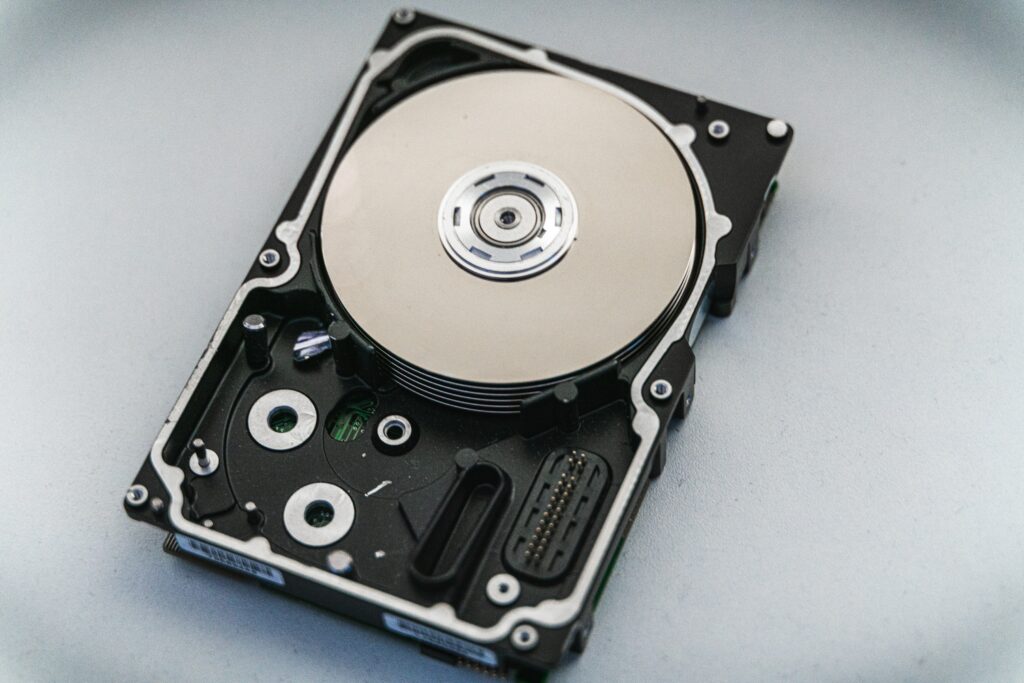
Step 1: Determine the Type of Hard Drive You Have Before you can transfer data from one hard drive to another, it’s important to determine the type of hard drive you have. There are two main types of hard drives: internal and external. Internal hard drives are located inside your computer, while external hard drives are separate devices that can be connected to your computer through a USB cable or other connector.
Step 2: Connect the New Hard Drive to Your Computer If you’re transferring data to an internal hard drive, you’ll need to physically install the drive inside your computer. This may involve opening your computer case and attaching the hard drive to the motherboard using a SATA cable. If you’re transferring data to an external hard drive, simply plug the drive into your computer using a USB cable or other connector.
Step 3: Copy Data from the Old Hard Drive to the New Hard Drive Once you’ve connected the new hard drive to your computer, you’ll need to copy the data from the old hard drive to the new one. There are several ways to do this, including using a file transfer program, using the built-in Windows utility, or simply dragging and dropping files from one hard drive to another.
One popular file transfer program is EaseUS Todo PCTrans, which allows you to transfer files, applications, and settings from one computer to another. To use this program, install it on your computer and follow the on-screen instructions to transfer data from one hard drive to another.
If you’re using the built-in Windows utility, follow these steps:
- Press the Windows key + E to open File Explorer.
- Locate the files or folders you want to transfer.
- Right-click on the files or folders and select “Copy”.
- Navigate to the new hard drive and right-click in an empty space.
- Select “Paste” to copy the files or folders to the new hard drive.
Step 4: Verify the Data Was Transferred Successfully After you’ve transferred the data to the new hard drive, it’s important to verify that the transfer was successful. You can do this by opening the files and folders on the new hard drive to make sure they’re all there and functioning properly.
Step 5: Remove the Old Hard Drive (Optional) If you’re transferring data to a new internal hard drive, you may want to remove the old hard drive to free up space or reduce clutter inside your computer case. To do this, simply shut down your computer and unplug it from the power source. Then, remove the cables connecting the old hard drive to the motherboard and carefully remove the hard drive from the case.
Step 6: Format the Old Hard Drive (Optional) If you’re planning to reuse the old hard drive, you may want to format it to erase any data that’s still on it. To do this, connect the old hard drive to your computer using a USB adapter or enclosure. Then, right-click on the drive in File Explorer and select “Format”. Follow the on-screen instructions to complete the formatting process.
In conclusion, transferring data from one hard drive to another can be a straightforward process as long as you have the right tools and knowledge. By following the steps outlined above, you can ensure that your data is transferred successfully and that your new hard drive is ready to use.