AirPlay is a proprietary protocol developed by Apple Inc. that allows wireless streaming between devices of audio, video, and photos. It can be used to stream content from an Apple device, such as an iPhone or iPad, to a Vizio Smart TV. Here are the steps to turn on AirPlay on a Vizio Smart TV:
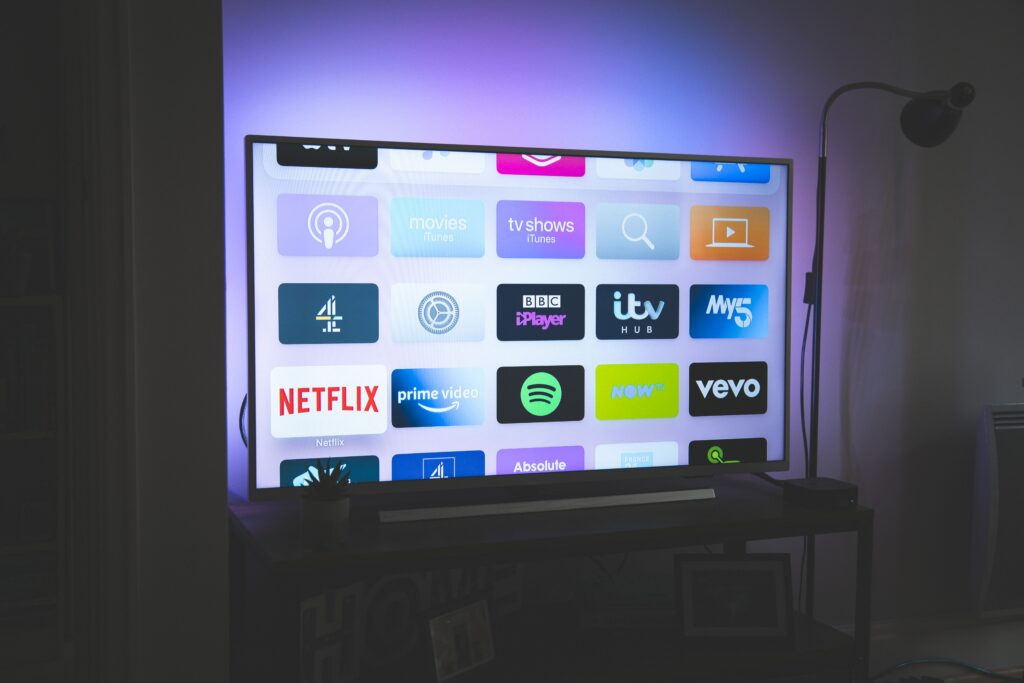
Step 1: Update Your Vizio Smart TV
Before you can use AirPlay on your Vizio Smart TV, you need to ensure that it is updated to the latest firmware version. To update your Vizio Smart TV, follow these steps:
- Press the Menu button on your Vizio remote control.
- Go to System > Check for Updates.
- If an update is available, follow the prompts to download and install it.
- Once the update is complete, restart your Vizio Smart TV.
Step 2: Connect Your Vizio Smart TV to Wi-Fi
To use AirPlay on your Vizio Smart TV, you need to connect it to Wi-Fi. Here’s how to do it:
- Press the Menu button on your Vizio remote control.
- Go to Network > Wi-Fi Connection.
- Select your Wi-Fi network from the list of available networks.
- Enter your Wi-Fi password, if prompted.
- Wait for your Vizio Smart TV to connect to the Wi-Fi network.
Step 3: Turn on AirPlay on Your Vizio Smart TV
Once your Vizio Smart TV is updated and connected to Wi-Fi, you can turn on AirPlay by following these steps:
- Press the Input button on your Vizio remote control.
- Select the AirPlay input from the list of available inputs.
- Wait for AirPlay to load.
- When AirPlay is ready, your Vizio Smart TV will display an AirPlay code.
Step 4: Connect Your Apple Device to Your Vizio Smart TV
To use AirPlay, you need to connect your Apple device to your Vizio Smart TV. Here’s how to do it:
- Swipe up from the bottom of your Apple device’s screen to access the Control Center.
- Tap the Screen Mirroring button.
- Select your Vizio Smart TV from the list of available devices.
- Enter the AirPlay code displayed on your Vizio Smart TV.
- Wait for your Apple device to connect to your Vizio Smart TV.
Step 5: Stream Content from Your Apple Device to Your Vizio Smart TV
Once your Apple device is connected to your Vizio Smart TV, you can use AirPlay to stream content from your device to your TV. Here are some examples of what you can do:
- Stream a video from the Photos app.
- Play a game on your Apple device and see it on your Vizio Smart TV.
- Stream music from your Apple device to your Vizio Smart TV.
- Use AirPlay to display a presentation or slideshow on your Vizio Smart TV.
In conclusion, turning on AirPlay on a Vizio Smart TV is a simple process that can be done by updating the TV to the latest firmware, connecting it to Wi-Fi, and selecting the AirPlay input. Once AirPlay is enabled, users can connect their Apple devices to the TV and stream various types of content to it.