The WD Elements external hard drive is a simple and reliable solution for storing and backing up your important data. In this guide, we will take you through the steps to use the WD Elements external hard drive.
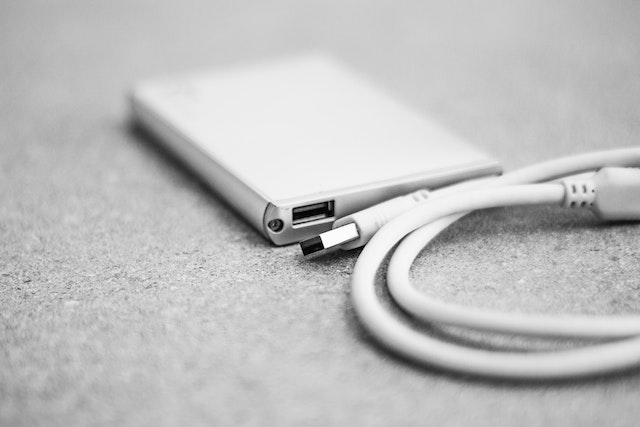
- Connect the WD Elements External Hard Drive to Your Computer The first step to using your WD Elements external hard drive is to connect it to your computer. The WD Elements external hard drive uses a USB 3.0 interface, which is backward compatible with USB 2.0. To connect the drive to your computer, simply plug one end of the USB cable into the drive and the other end into an available USB port on your computer.
- Power on the Drive Once you have connected the drive to your computer, you will need to power it on. Most WD Elements external hard drives are powered by the USB cable, so there is no need to connect an external power source.
- Formatting the Drive If the WD Elements external hard drive is new, or if you have never used it before, you will need to format the drive before you can use it. Formatting the drive will erase all the data on the drive, so make sure you have backed up any important data before you begin.
To format the WD Elements external hard drive, follow these steps:
- Open File Explorer in Windows or Finder on a Mac.
- Find the drive in the list of devices and right-click on it.
- Click on “Format…” in the context menu.
- Select the file system format you want to use (NTFS for Windows or HFS+ for Mac).
- Give the drive a name in the “Volume Label” field.
- Click on “Start” to begin the formatting process.
- Wait for the formatting process to complete.
- Using the WD Elements External Hard Drive Once the WD Elements external hard drive is formatted, you can use it just like any other external hard drive. Here are some common uses for the WD Elements external hard drive:
- Backup: The WD Elements external hard drive is a great solution for backing up important files and data. You can use a backup software to create an automatic backup of your files.
- File Storage: You can use the WD Elements external hard drive to store your files, such as photos, videos, music, and documents.
- Portable Storage: The WD Elements external hard drive is portable, so you can take it with you wherever you go. This is a great solution for storing and transferring files between computers.
- Safely Ejecting the Drive Once you have finished using the WD Elements external hard drive, it is important to safely eject the drive before disconnecting it from your computer. This will ensure that any data that is being written to the drive is completed and that there is no risk of data corruption.
To safely eject the WD Elements external hard drive, follow these steps:
- Click on the “Safely Remove Hardware and Eject Media” icon in the taskbar on Windows or the menu bar on Mac.
- Find the WD Elements external hard drive in the list of devices.
- Click on the “Eject” button next to the drive.
- Wait for the “Safe to Remove Hardware” message to appear.
- Disconnect the USB cable from the drive and your computer.
Conclusion
Using the WD Elements external hard drive is a simple and easy process. Once you have connected the drive to your computer and formatted it, you can use it for backing up your files, storing your files, or as a portable storage solution. Just remember to safely eject the drive before disconnecting it from your computer to prevent data loss.
How to use WD elements external hard drive?