The Echo Show is a device that enables video calling with other Echo Show users as well as other compatible devices such as smartphones and tablets. Video calling using the Echo Show is an easy way to stay connected with loved ones. Here’s a step-by-step guide on how to make video calls from one Echo Show to another:
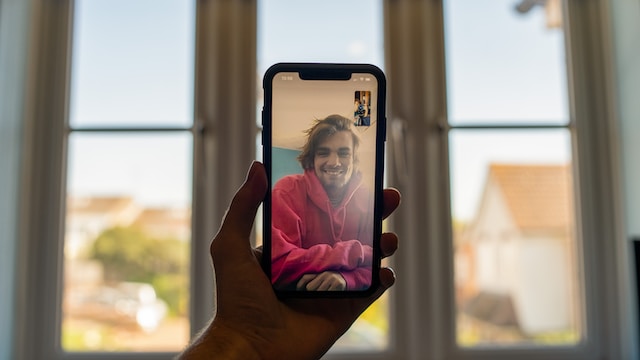
Step 1: Set up the Echo Show devices Ensure that both Echo Show devices are set up and connected to the internet. To do this, follow these steps:
- Plug in both Echo Show devices and turn them on.
- Follow the on-screen prompts to connect to your Wi-Fi network and sign in to your Amazon account.
- Verify that both devices are running the latest software version. To do so, say “Alexa, check for updates” or swipe down from the top of the screen and select Settings > Device Options > Check for Software Updates.
Step 2: Activate Drop In on both devices Drop In is a feature that lets you connect to other Echo devices without needing them to answer the call. This is helpful for video calls between family and friends. To enable Drop In on both Echo Show devices, follow these steps:
- Open the Alexa app on your smartphone or tablet.
- Tap on the Devices tab at the bottom of the screen.
- Choose the Echo Show device you wish to activate Drop In for.
- Scroll down to the Communications section and choose Drop In.
- Choose the contacts you wish to activate Drop In for, or select “Only my household” if you only want to accept calls from other Echo devices on the same Amazon account.
- Repeat the above steps for the other Echo Show device.
Step 3: Initiate a video call To make a video call from one Echo Show to another, follow these steps:
- Say “Alexa, call [name of other Echo Show device]” or “Alexa, video call [name of other Echo Show device].”
- Wait for the other person to accept the call. If they have activated Drop In, the call will connect automatically.
- Once the call is connected, you can see and hear the other person on your Echo Show display.
- To end the call, say “Alexa, hang up” or tap the End Call button on the screen.
Step 4: Use other video calling apps If you prefer to use other video calling apps such as Skype or Zoom, you can download them from the Amazon Appstore on your Echo Show. Here’s how:
- Swipe down from the top of the screen and select Settings.
- Select Alexa Preferences > Communication.
- Scroll down to the section labeled “External Calling” and choose the app you want to use.
- Follow the on-screen prompts to download and set up the app.
- Once the app is installed, you can use it to make video calls to other users on the same app.
In conclusion, making a video call from one Echo Show to another is a simple process that requires setting up both devices, activating Drop In on both devices, and then initiating the call using voice commands or the touchscreen. Additionally, you can use other video calling apps on the Echo Show by downloading them from the Amazon Appstore. These straightforward steps ensure that you remain connected with loved ones using your Echo Show devices.