Hulu Live is a popular streaming service that offers live TV channels, on-demand content, and original programming. If you have a smart TV, you can easily watch Hulu Live on your TV without the need for a separate streaming device. Here’s how you can watch Hulu Live on your smart TV:
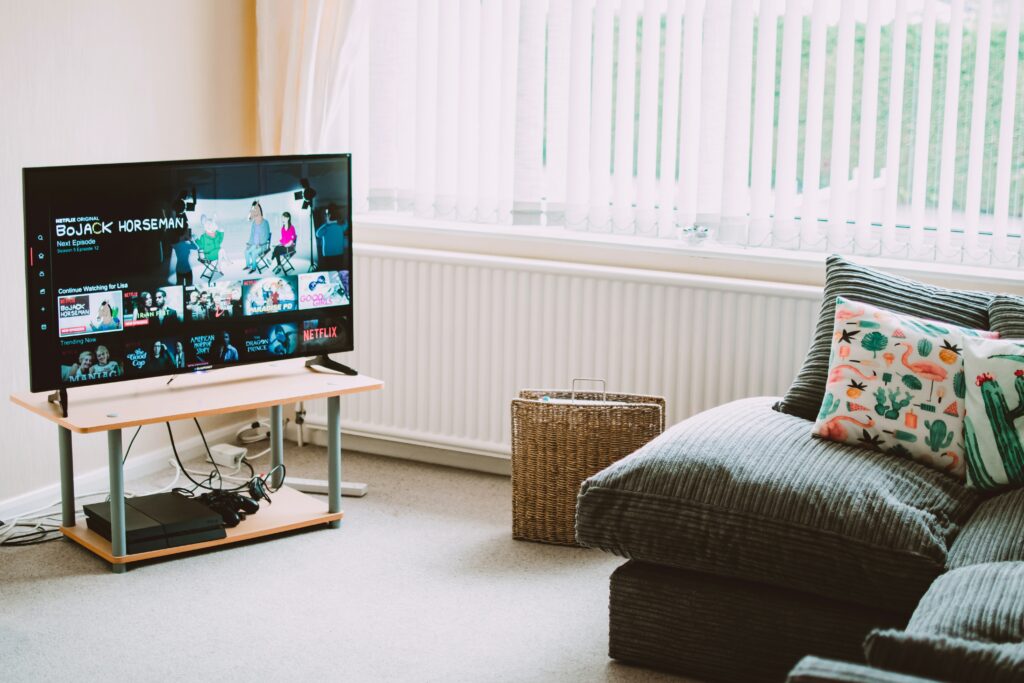
Step 1: Check if your smart TV is compatible with Hulu Live First, make sure your smart TV is compatible with Hulu Live. Most smart TVs manufactured after 2014 should be compatible with Hulu Live, but it’s always best to check. You can check the Hulu website for a list of compatible smart TVs.
Step 2: Download the Hulu app on your smart TV Next, you need to download the Hulu app on your smart TV. The process of downloading and installing the app may vary depending on the brand and model of your TV. Here are some general steps you can follow:
- Press the “Home” or “Smart” button on your remote control to access the smart TV menu.
- Navigate to the app store or “marketplace” section of your TV’s menu.
- Search for “Hulu” in the app store.
- Select the Hulu app from the search results and download it.
Step 3: Sign up for Hulu Live If you haven’t already signed up for Hulu Live, you’ll need to do so before you can start watching live TV. You can sign up for Hulu Live through the Hulu website or the Hulu app on your mobile device.
Step 4: Sign in to Hulu Live on your smart TV Once you’ve signed up for Hulu Live, you can sign in to your account on your smart TV. Here are the steps to follow:
- Open the Hulu app on your smart TV.
- Select “Log In” or “Sign In” from the app’s menu.
- Enter your email address and password to sign in to your Hulu Live account.
- You may also need to enter a verification code if this is your first time signing in on the TV.
Step 5: Start watching Hulu Live on your smart TV After you’ve signed in to your Hulu Live account on your smart TV, you can start watching live TV. You can browse channels using the on-screen guide or search for specific shows or movies using the app’s search function.
Tips and Tricks for Watching Hulu Live on Your Smart TV
- Make sure your smart TV is connected to the internet before trying to download the Hulu app.
- If you have trouble downloading the Hulu app, try restarting your TV and/or resetting your TV to its factory settings.
- You may need to update your smart TV’s firmware or software to ensure it’s compatible with the latest version of the Hulu app.
- If you experience buffering or other playback issues, try restarting your TV, modem, and router. You can also try adjusting your video quality settings in the Hulu app to improve playback.
- If you have multiple people in your household watching Hulu Live on different devices, you may want to consider upgrading to the “Unlimited Screens” add-on so that everyone can watch at the same time.
In conclusion, watching Hulu Live on your smart TV is a great way to enjoy live TV and on-demand content on the big screen. With a few simple steps, you can download the Hulu app on your smart TV, sign up for Hulu Live, and start watching your favorite shows and channels in no time.