When an internal hard drive is not showing up in Windows 10, it can be frustrating and concerning, but there are several steps you can take to resolve the issue.
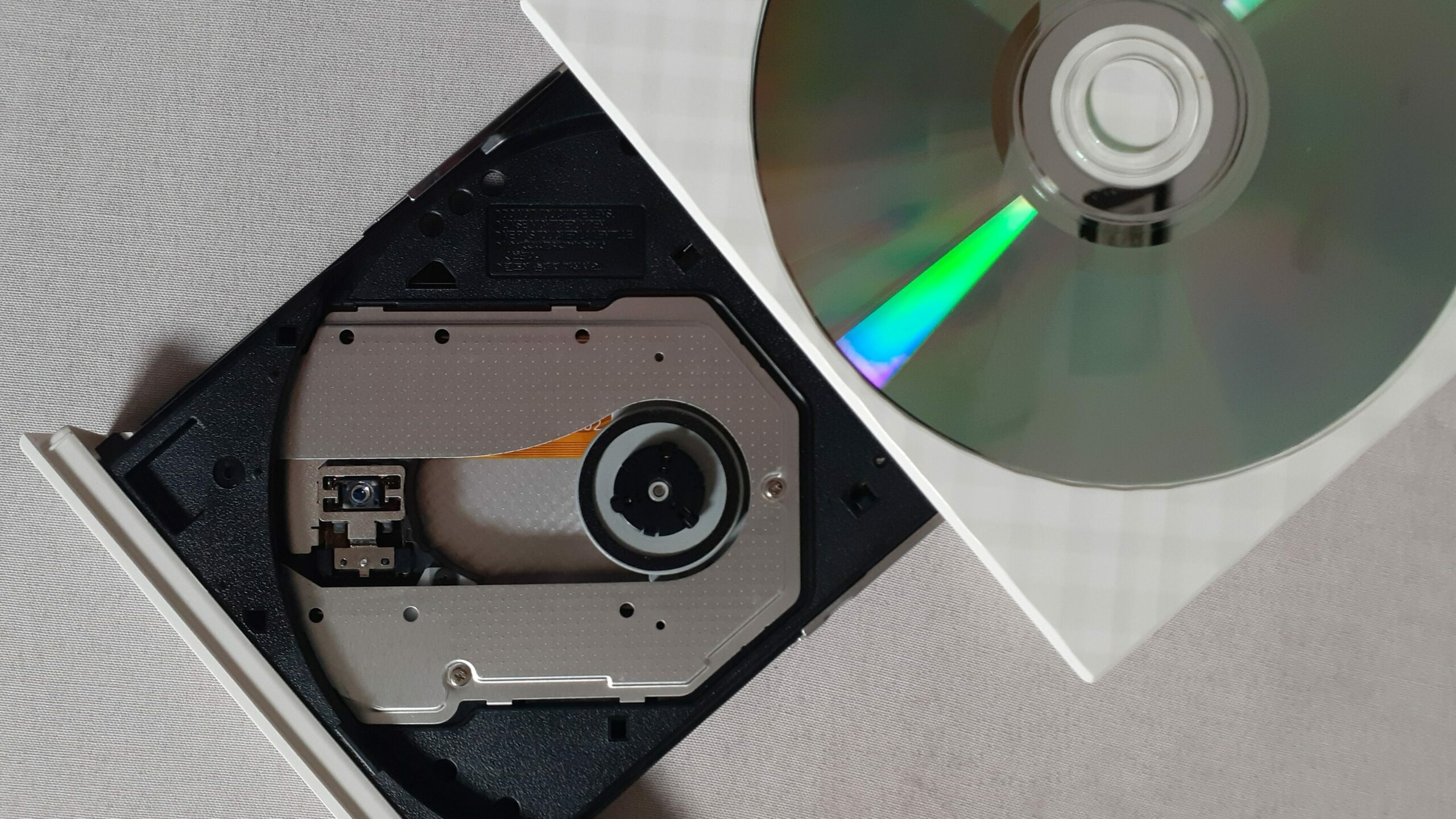
Check the connections: The first step is to ensure that the hard drive is properly connected to the computer. Open up the computer case and ensure that the cables are securely connected to the hard drive and the motherboard. If necessary, try unplugging and re-plugging the cables to ensure a good connection.
Check the BIOS settings: If the hard drive is still not showing up, it may be necessary to check the BIOS settings. Restart your computer and enter the BIOS by pressing the key indicated on the startup screen. Once in the BIOS, check to see if the hard drive is detected in the list of connected devices. If it is not, try resetting the BIOS to its default settings and see if that resolves the issue.
Check the Disk Management tool: If the hard drive is still not showing up, it may be necessary to check the Disk Management tool in Windows. Press the Windows key + X and select Disk Management from the menu. If the hard drive is listed, it may be necessary to assign a drive letter to it. Right-click on the hard drive and select Change Drive Letter and Paths. Select a drive letter and click OK to assign it to the hard drive. If the hard drive is not listed, it may be necessary to initialize the disk. Right-click on the disk and select Initialize Disk. Choose the appropriate disk format and click OK to initialize the disk.
Update the driver: If the hard drive is still not showing up, it may be necessary to update the driver. Open the Device Manager by pressing the Windows key + X and selecting Device Manager from the menu. Expand the Disk drives category and right-click on the hard drive. Select Update driver and follow the prompts to update the driver. If Windows cannot find an updated driver, you may need to visit the manufacturer’s website to download and install the latest driver.
Check the hardware: If none of the above steps have resolved the issue, it may be necessary to check the hardware. The hard drive may be damaged or defective, in which case it will need to be replaced. Alternatively, the motherboard or other hardware components may be faulty, which will require further troubleshooting.
In conclusion, when an internal hard drive is not showing up in Windows 10, it can be a frustrating issue, but there are several steps you can take to resolve it. First, check the connections and BIOS settings to ensure everything is properly configured. If the hard drive is still not showing up, check the Disk Management tool and update the driver if necessary. If none of these steps resolve the issue, it may be necessary to check the hardware for damage or defects.