External hard drives are devices that provide additional storage space for users to store their data. However, at times it can be frustrating when an external hard drive fails to show up on your Mac. This article will discuss the possible reasons why your Lacie external hard drive may not be showing up on your Mac and the steps you can take to troubleshoot the issue.
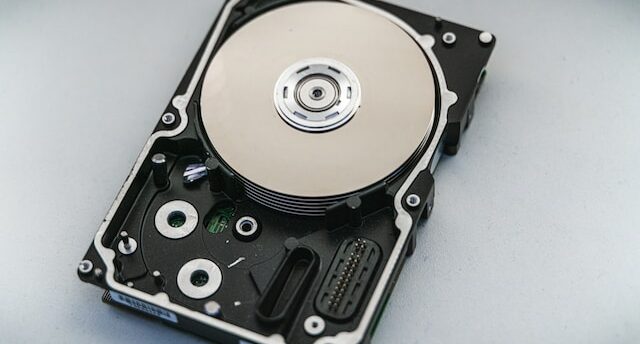
To start, it is important to determine whether the issue is with the hard drive or your Mac. To check, connect the Lacie external hard drive to another computer. If the drive is detected on another computer, then the issue is with your Mac. If the hard drive is still not detected on another computer, then the issue is likely with the drive itself.
Assuming the issue is with your Mac, first check if the hard drive is properly connected to your Mac. Ensure that the USB cable is securely connected to both the hard drive and your Mac. You can try using a different USB port on your Mac or try connecting the drive to a different Mac.
If the Lacie external hard drive still does not show up on your Mac, the issue may be due to a corrupted file system. In this case, repair the file system using Disk Utility. Disk Utility is a built-in utility on macOS that allows you to manage and repair storage devices.
To repair the file system on your Lacie external hard drive using Disk Utility, follow these steps:
- Open Disk Utility on your Mac (you can find it in the Applications > Utilities folder).
- Locate your Lacie external hard drive in the left sidebar of Disk Utility.
- Select the hard drive and click on the First Aid button in the toolbar.
- Click on Run to start the repair process.
Disk Utility will now scan your Lacie external hard drive and attempt to repair any errors in the file system. This process may take some time, depending on the size of the hard drive and the number of errors that need to be repaired.
If Disk Utility is unable to repair the file system on your Lacie external hard drive, you may need to reformat the drive. Reformatting erases all data on the hard drive, so make sure to backup any important files before proceeding.
To reformat your Lacie external hard drive, follow these steps:
- Open Disk Utility on your Mac.
- Locate your Lacie external hard drive in the left sidebar of Disk Utility.
- Select the hard drive and click on the Erase button in the toolbar.
- Choose a file system format (such as macOS Extended or APFS) and give your hard drive a new name.
- Click on Erase to start the reformatting process.
Disk Utility will now erase all data on your Lacie external hard drive and reformat it with the new file system format.
In conclusion, if your Lacie external hard drive is not showing up on your Mac, there are several steps you can take to troubleshoot the issue. First, ensure that the hard drive is properly connected to your Mac. Next, try repairing the file system using Disk Utility. If all else fails, you may need to reformat the hard drive. By following these steps, you can hopefully get your Lacie external hard drive working again on your Mac.