LG Smart TVs come with a wide range of apps that provide a great entertainment experience. These apps include popular streaming services such as Netflix, Hulu, Amazon Prime, and many more. If you want to download additional apps to your LG Smart TV, you can do so easily using the LG Content Store.
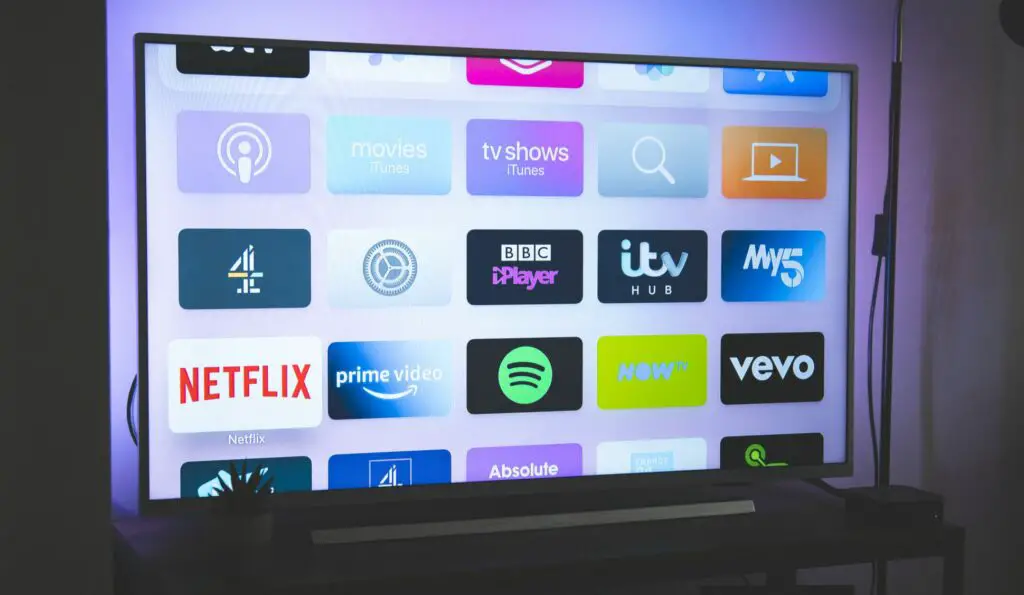
Here’s a step-by-step guide on how to download apps on your LG Smart TV:
Step 1: Turn on your LG Smart TV and navigate to the home screen by pressing the “Home” button on your remote control.
Step 2: Scroll down to the LG Content Store icon and select it. The LG Content Store is where you can browse and download apps for your TV.
Step 3: Once you’re in the LG Content Store, you can search for apps by name or browse through the different categories such as “Movies & TV,” “Games,” “Education,” and more. You can also use the search bar to search for apps by keyword.
Step 4: Once you’ve found the app you want to download, click on its icon to open its details page. Here, you can read more about the app, view screenshots, and check user ratings and reviews.
Step 5: If you’re happy with the app, click on the “Install” button to start the download process. Depending on the size of the app and your internet speed, the download may take a few minutes.
Step 6: Once the app has finished downloading, you can open it by selecting it from the home screen or by using the “My Apps” section of the LG Content Store.
It’s important to note that not all apps may be available for your specific LG Smart TV model. Additionally, some apps may require a subscription or may not be free to download. Make sure to read the app’s details page carefully before downloading it to avoid any surprises.
If you’re having trouble downloading apps on your LG Smart TV, here are some troubleshooting tips:
- Check your internet connection: Make sure your TV is connected to the internet and that your internet connection is stable. You can test your connection speed by using an internet speed test website or app.
- Check for software updates: Make sure your LG Smart TV has the latest software update installed. You can check for updates in the TV’s settings menu.
- Reset your TV: If you’re still having trouble downloading apps, try resetting your TV to its default settings. You can do this in the TV’s settings menu. Note that resetting your TV will erase all your personal settings and data, so make sure to back up anything important before doing this.
In conclusion, downloading apps on your LG Smart TV is easy and straightforward. With the LG Content Store, you have access to a wide range of apps that can enhance your entertainment experience. Just follow the steps outlined above, and you’ll be downloading apps in no time!