LG Ultragear is a popular gaming monitor that is known for its high-quality features and design. One of the key features of this monitor is its built-in speakers, which allow gamers to enjoy immersive audio while playing their favorite games. However, there are times when these speakers may not work, which can be frustrating for users. In this article, we will explore some of the reasons why LG Ultragear speakers may not work and provide some solutions to fix this issue.
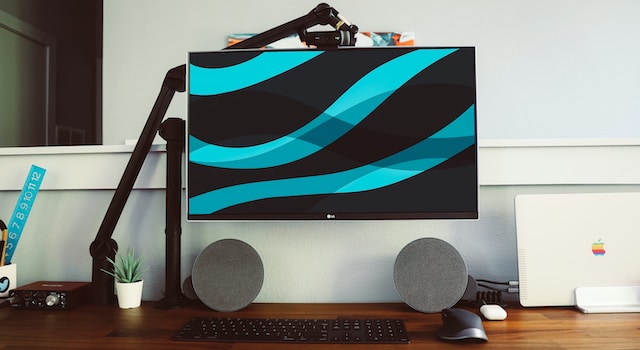
- Check the audio settings
The first thing you should do when your LG Ultragear speakers are not working is to check the audio settings on your computer or gaming console. Make sure that the audio is not muted or turned down too low. You should also check the audio output settings to ensure that the sound is being directed to the correct device. If you have multiple audio output devices connected to your computer, make sure that you have selected the LG Ultragear as the default audio output device.
- Check the cables
Another reason why your LG Ultragear speakers may not be working is due to loose or damaged cables. Check the audio cable that connects your monitor to your computer or gaming console to make sure that it is securely connected. If the cable is loose, try unplugging it and plugging it back in. If the cable is damaged, you may need to replace it with a new one.
- Check the volume
If the audio settings and cables are not the issue, then the problem may be with the volume. Check the volume on your computer or gaming console and make sure that it is turned up. You should also check the volume settings on your LG Ultragear monitor. There may be physical buttons on the monitor that allow you to adjust the volume. If the volume is turned up but you still cannot hear any sound, try turning the volume up on your computer or gaming console to see if that resolves the issue.
- Update drivers
If none of the above solutions work, then the issue may be with the drivers. Drivers are software programs that allow your computer to communicate with hardware devices like your LG Ultragear monitor. If your drivers are outdated or corrupted, it can cause issues with your monitor’s audio. To update your drivers, go to the manufacturer’s website and search for the latest drivers for your LG Ultragear monitor. Download and install the drivers, then restart your computer or gaming console to see if the issue is resolved.
- Contact support
If none of the above solutions work, then you may need to contact LG support. LG support can help you diagnose the issue and provide further assistance. You can contact LG support via phone or email. Before contacting support, make sure that you have the model number of your LG Ultragear monitor and a description of the issue you are experiencing.
Conclusion
LG Ultragear speakers not working can be frustrating, but there are several solutions that you can try. Start by checking the audio settings on your computer or gaming console, then check the cables and volume. If none of these solutions work, then update your drivers or contact LG support for further assistance. With the right troubleshooting steps, you can get your LG Ultragear speakers working again and enjoy immersive audio while gaming.