If your Mac is not recognizing your external hard drive, there could be several reasons why this is happening. In this answer, we’ll go over some troubleshooting steps you can take to try and fix the problem.
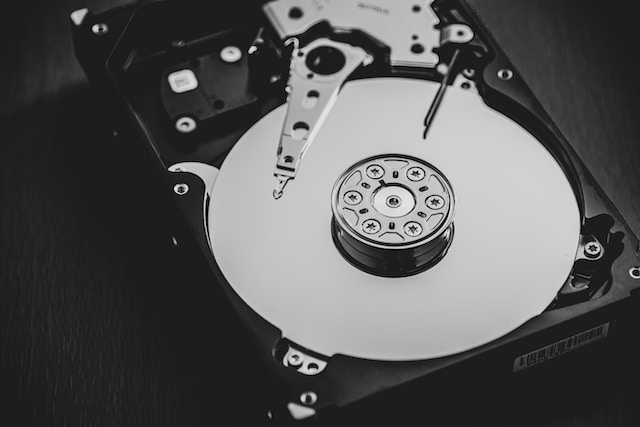
- Check the connections: The first thing you should do is to check the connections between your Mac and the external hard drive. Make sure that the cable is securely connected to both the Mac and the hard drive. You should also try using a different USB cable or port on your Mac to see if that resolves the issue.
- Restart your Mac: Sometimes, simply restarting your Mac can fix the problem. Make sure to properly eject the external hard drive from your Mac before restarting it. Once your Mac has restarted, try connecting the external hard drive again to see if it is recognized.
- Check the power source: If your external hard drive requires its own power source, make sure that it is plugged in and turned on. Some external hard drives may also require a separate power adapter that should be plugged into an electrical outlet.
- Check the external hard drive on another device: Try connecting the external hard drive to another device, such as a Windows PC, to see if it is recognized. If it is not recognized on another device, there may be an issue with the hard drive itself.
- Check the Disk Utility: The Disk Utility is a built-in tool on your Mac that can help you diagnose and fix problems with your external hard drive. To access the Disk Utility, go to Applications > Utilities > Disk Utility. Once the Disk Utility is open, select the external hard drive from the list of devices on the left-hand side of the screen. If the external hard drive is not visible in Disk Utility, there may be an issue with the connection between the hard drive and the Mac.
- Check the Finder preferences: If the external hard drive is not showing up on your desktop or in the Finder window, it may be hidden from view. To check this, open a Finder window and click on “Finder” in the menu bar at the top of the screen. From there, select “Preferences” and then click on the “Sidebar” tab. Make sure that the box next to “External disks” is checked.
- Try repairing the external hard drive: If the Disk Utility is able to see the external hard drive, but there are errors on the drive, you can try repairing it. To do this, select the external hard drive in Disk Utility and click on the “First Aid” tab. From there, click on the “Run” button to begin the repair process.
- Try reformatting the external hard drive: If none of the above steps work, you may need to reformat the external hard drive. Keep in mind that reformatting the drive will erase all data on it, so make sure to back up any important files before proceeding. To reformat the drive, select it in Disk Utility and click on the “Erase” tab. From there, choose a file system format (such as APFS or Mac OS Extended) and click on the “Erase” button.
In conclusion, if your Mac is not recognizing your external hard drive, there are several steps you can take to try and fix the problem. By checking the connections, restarting your Mac, checking the power source, using the Disk Utility, checking the Finder preferences, repairing the drive, or reformatting the drive, you should be able to get your external hard drive up and running again.
Mac doesn’t recognize external hard drive