When it comes to external hard drives, it’s not uncommon for users to encounter issues such as disk errors, corruption, or even physical damage. If you’re a macOS user and you’ve encountered an error that your Mac can’t repair the disk external hard drive, there are several steps you can take to troubleshoot and potentially resolve the issue. In this article, we’ll discuss the common reasons why macOS may not be able to repair an external hard drive, as well as some potential solutions.
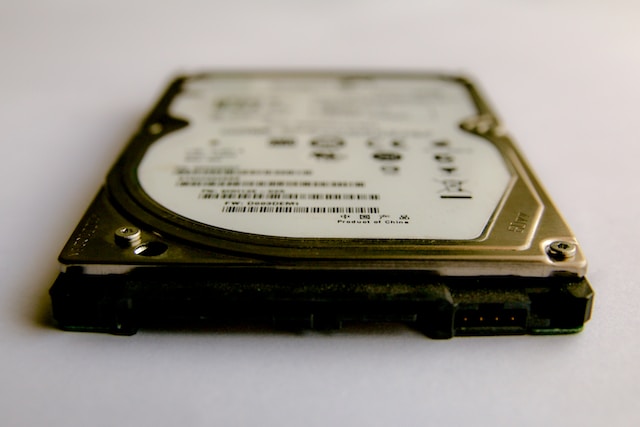
Reasons why macOS can’t repair the disk external hard drive
- Physical damage: If your external hard drive has been dropped, bumped, or exposed to water or extreme temperatures, it could be physically damaged. This type of damage can cause the disk to become unreadable or even unresponsive, making it impossible for macOS to repair the disk.
- File system errors: If there are errors with the file system on the external hard drive, such as corruption or inconsistency, macOS may not be able to repair the disk. This can happen due to a variety of reasons, including sudden power loss, improper ejection of the external hard drive, or even malware.
- Disk partitioning issues: If the disk partition map on the external hard drive is damaged, missing, or corrupted, macOS may not be able to repair the disk. This can happen if the partition map was modified incorrectly, or if the external hard drive was partitioned using a non-Mac format.
- Third-party software conflicts: In some cases, third-party software installed on your Mac could conflict with macOS’s disk repair functionality, making it impossible to repair the external hard drive.
Solutions for fixing external hard drive issues
- Use Disk Utility: Disk Utility is a built-in tool in macOS that allows you to manage and repair disks. To use it, connect your external hard drive to your Mac and open Disk Utility. Select the external hard drive from the list of disks on the left, and click on the First Aid button. This will initiate a disk repair process that may be able to fix the issue.
- Use Terminal: If Disk Utility fails to repair the disk, you can try using Terminal to repair the disk. Open Terminal and type “diskutil list” to list all the disks attached to your Mac. Find your external hard drive and note its identifier (e.g. /dev/disk2). Then, type “diskutil verifyDisk /dev/disk2” to check the disk for errors. If errors are found, type “diskutil repairDisk /dev/disk2” to repair them.
- Use a third-party disk repair tool: If neither Disk Utility nor Terminal can repair the disk, you can try using a third-party disk repair tool. There are several commercial and free options available, such as TechTool Pro, DiskWarrior, and Drive Genius. These tools offer more advanced repair options than Disk Utility, but they may not be able to fix physical damage.
- Recover data and replace the disk: If none of the above solutions work, it may be time to replace the external hard drive. Before doing so, you may want to try recovering any important data from the disk using a data recovery tool such as Disk Drill or EaseUS Data Recovery Wizard.
In conclusion, if macOS can’t repair the disk external hard drive, there are several potential reasons for this and several solutions to try. From using built-in tools like Disk Utility and Terminal to third-party disk repair tools or data recovery options, there are steps you can take to try to fix the issue. However, if the disk is physically damaged, it may be time to replace it.