Are you stuck and can’t connect your monitor to your pc? Not being able to connect your monitor to your computer isn’t uncommon. However, there are some easy steps you can take so that before you know it you’ll be up and running in no time. Read on to grab the necessary things to do.
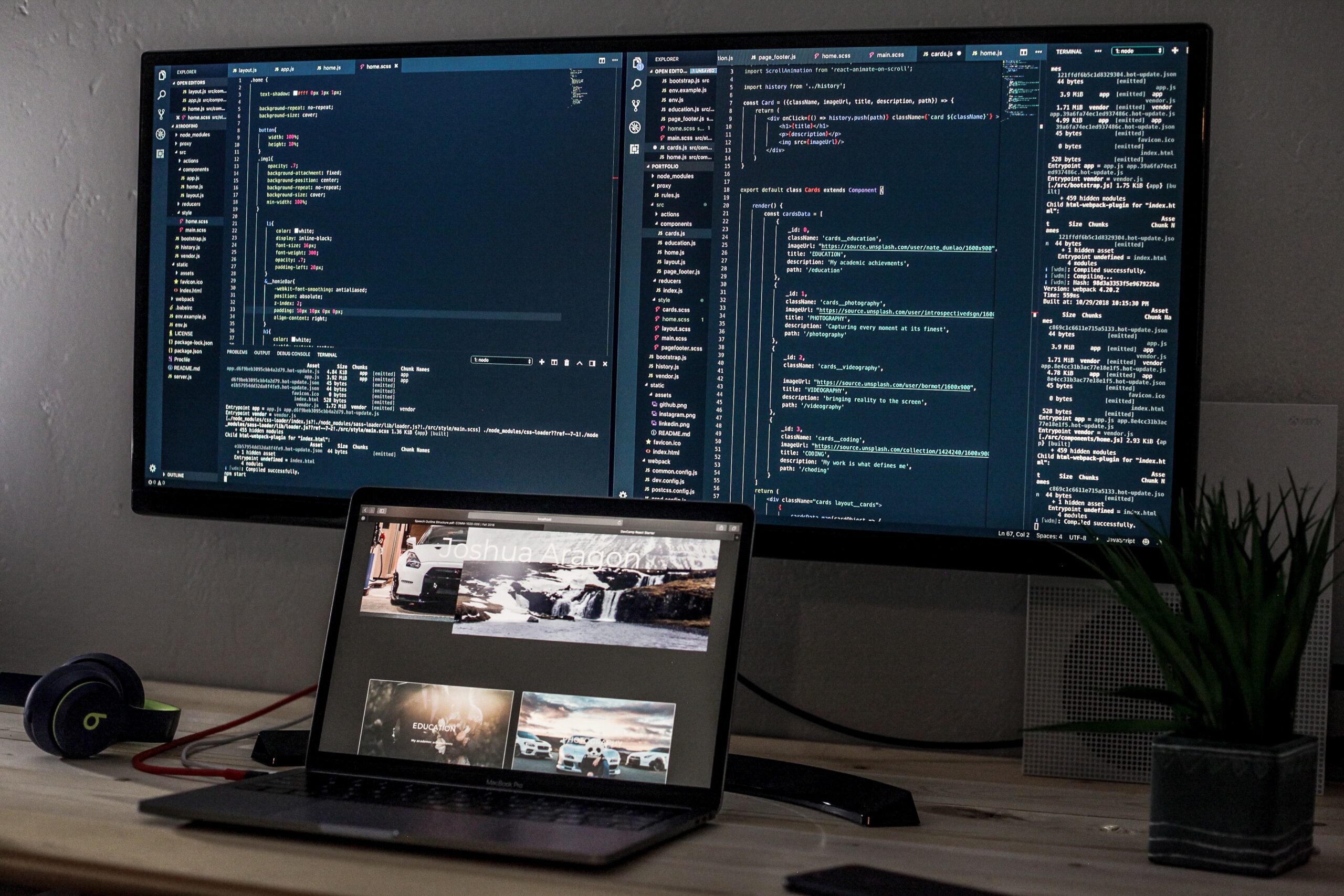
Monitor Won’t Connect To PC
If your monitor won’t connect to your PC, there are a few things you can do to troubleshoot the problem. First, make sure that you’re connect the monitor to the correct input on your PC. If you’re using a laptop and have multiple inputs, try each one until you find the one that works. If you’re using a desktop PC, check the back of the monitor for any labels indicating which input it uses; if there are no labels, try each one until you find one that works. If that doesn’t work, check to see if there are cables connected to both ends of the cable (e.g., from your computer to your monitor) and make sure that they’re snugly connected and not damaged or bent in any way. If all else fails, try connecting another device (like another monitor or laptop) to your computer’s input and see if it works correctly there—if so, then it’s probably your monitor that’s causing issues rather than something wrong with your computer.
Is the monitor power switch on?
If the power light is not on, make sure that the power switch is in the on position. You may have to press a button or flip a switch to turn it on.
If you are using a laptop computer, try turning it off and back on again. If you are using a desktop computer, try unplugging and replugging the monitor’s power cord into an electrical outlet.
Check the cable for breaks or damages
If you have a broken or damaged cable, it can prevent your device from being able to connect properly. Check the cable for breaks or damages and make sure that it is in good condition before trying to connect again.
Check the connector pins for damage
The connector pins on your monitor should be clean and straight, with no bent or damaged pins. If you find that one of the pins is bent or damaged, you will need to replace the cable.
Reseat the video card
If it’s not properly seated, it might not be able to transfer information between the two devices.
To reseat a video card:
Unplug the monitor from its power source, then unplug the video cable from both ends of the connector. This can be done by pushing down on a locking tab on each end of the connector (if present), or by unscrewing the screws that hold it in place if there are no tabs.
Unplug all cables from both ends of the cable; remove any tape or other securing materials; and remove any screws holding them in place.
Remove the cable from its slot on both ends of the cable by gently pulling on one of its ends while lifting up on the other end with a flathead screwdriver or similar tool.
Use a small Phillips-head screwdriver to loosen any screws holding down the connectors, then gently pull upward on each connector using another flathead screwdriver or similar tool until it pops out of its socket completely (you may need to use pliers if there are multiple connectors).
Place a new set of connectors into their respective slots and tighten down any screws that were loosened before replacing any cables or securing materials as necessary (if applicable).
If the monitor is connected to an integrated video card, then connect it to a discrete video card.
If the monitor is connected to a discrete video card, then disconnect it from the integrated video card and connect it directly to the motherboard.
If this does not work, then remove any extra graphics cards that are connected to the motherboard and see if that fixes the issue.
Check for physical damage to the cable and connector.
If you have an external GPU enclosure, make sure all cables are connected properly before proceeding with these steps.
Reconnect the monitor using a different cable
The first thing you should try is to reconnect the monitor using a different cable. You could also try replacing the cable with a new one, as well as turning off your computer and unplugging it from the wall for several minutes, then plugging it back in and turning it on again.
If none of those solutions work, you can try resetting or reinstalling the drivers for your computer’s graphics card. You may need to consult your computer’s manual for instructions on how to do this.
Check input settings
If your monitor won’t connect to your PC, there are two things you can check: the input settings and the connection.
If it’s set to HDMI and you’re trying to connect via VGA, you’ll get no signal. If it’s set up to receive audio and video via HDMI but you’re only using a VGA cable, you’ll get no sound.
Next, check that your computer is sending a signal out through the correct port (HDMI/VGA/etc.). If you’re connecting via HDMI but only have a VGA cable, then your computer won’t be able to send audio or video over that port—it will only be able to send power (for example).
Try Updating The Other Drivers On Your PC
To update other drivers, follow these steps:
1) Open the Control Panel by clicking on the Start button and then clicking Control Panel.
2) Click System and Maintenance, then click Device Manager.
3) Right-click on the device you want to update. For example, if you want to update your graphics driver, right-click on Display Adapter (or whatever name is listed for your graphics card). If you want to update another driver, such as your network controller or audio card driver, right-click on that device instead.
4) Click Update Driver Software in the menu that appears at the bottom of your screen. In some cases, this option may be called Update Driver Software From Device Manager instead of Update Driver Software directly above it in the menu list. If so, click this option instead of Update Driver Software directly above it in the menu list until step 5 below has finished its work!
Check For An Updated Monitor Driver
Some monitors come with outdated drivers that can cause them to stop working correctly.
Once in the Device Manager, click on Display Adapters and make sure you are looking at the correct monitor in the list of devices.
Check for an updated monitor driver. If you’re using a Windows 10 PC and your monitor is connected through a USB-C cable, you’ll need to install the USB graphics driver from your monitor manufacturer.
If you’re using a Windows 7 or 8 PC and your monitor is connected through a DisplayPort cable, you’ll need to install the DisplayPort graphics driver from your monitor manufacturer.
Try The Monitor With A Different PC
If you have access to another monitor, try connecting it to your PC and see if it works. If the new monitor works and your old monitor doesn’t, then the problem is likely with your old monitor.
If you don’t have access to another monitor, try unplugging the power cord from both ends of the monitor for 10 seconds, then plugging it back in and trying again.
Check For Physical Damage To The Cable And Connector
Check for physical damage to the cable and connector by removing the cable from both ends. Look for loose or missing pins in the connectors, bent pins, or other obvious damage. If there is no evidence of physical damage to either end of the cable, check for software issues by unplugging the monitor from its power source. If you still don’t see a display on your computer screen after restarting both devices, try re-installing drivers from their original disks or discs that came with them originally when purchased new from an electronics store
Clean Off Monitor Ports
If your monitor won’t connect to your computer, the first thing you should check is whether or not the ports on the monitor are clean. If you see any gunk, dust, or debris in your monitor’s ports, it may be preventing a connection between your monitor and computer. Clean off these ports with a can of compressed air, then try connecting again.
Conclusion
If the issue is with a monitor, the fix could be as simple as making sure your video card drivers have the proper cables installed for your particular monitor. If everything is good there, then the likely culprit is a bad input port. The first thing you should do is make sure the graphics card is plugged in correctly (usually a matter of matching up colors or shapes). You might also try taking it out again and plugging it back in, then restarting your computer.