Mounting a hard drive is the process of making the contents of the drive accessible to your computer’s operating system. This allows you to access the files on the drive, and to use it for storing additional data. In this answer, we’ll go through the steps you need to take to mount a hard drive on your computer.
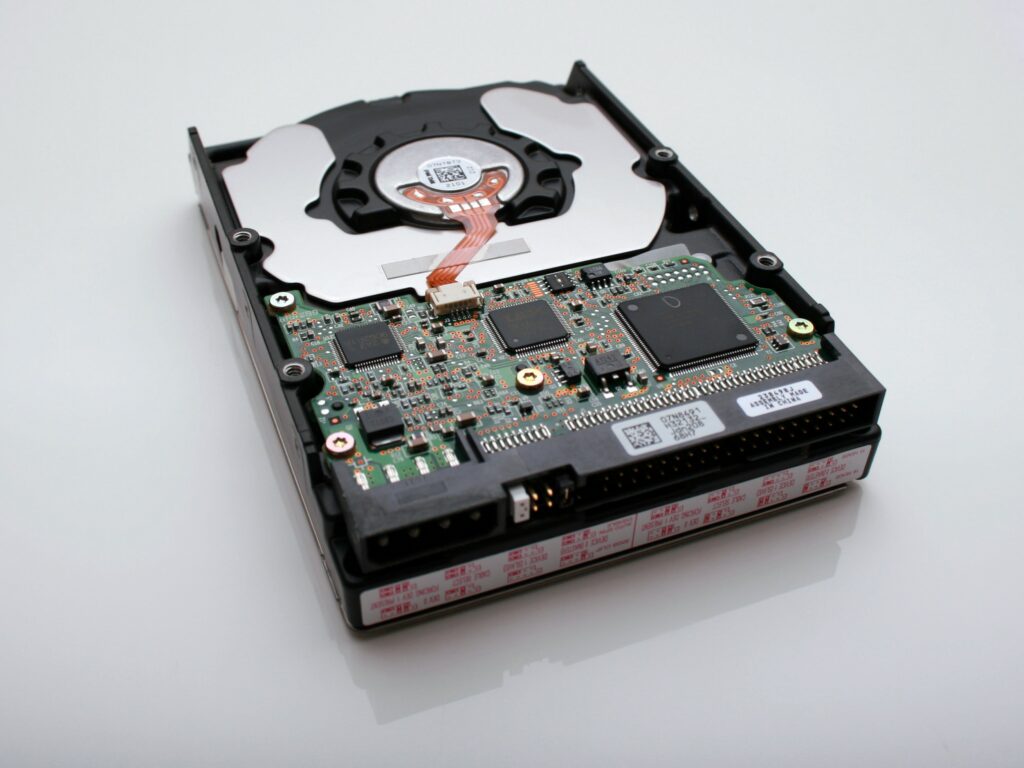
Step 1: Physically install the hard drive
Before you can mount a hard drive, you need to physically install it inside your computer. The exact steps for doing this will depend on the make and model of your computer, but in general, you’ll need to:
- Open the computer case and locate an available drive bay
- Insert the hard drive into the drive bay and secure it with screws
- Connect the SATA or IDE data cable and power cable to the hard drive
- Close the computer case
Step 2: Boot up your computer
Once you’ve installed the hard drive, you need to boot up your computer. If your hard drive is an internal drive, it should be automatically detected by your computer’s BIOS during the boot process. If your hard drive is an external drive, you’ll need to connect it to your computer and turn it on before proceeding.
Step 3: Check if the drive is recognized
After booting up your computer, you’ll need to check if the hard drive is recognized by your operating system. The exact steps for doing this will depend on your operating system, but here are some general guidelines:
Windows
- Open File Explorer
- Look for the hard drive under the “This PC” or “Computer” section
MacOS
- Click the Apple menu and select “About This Mac”
- Click the “System Report” button
- Look for the hard drive under the “Hardware” section
Linux
- Open the terminal
- Type the command “sudo fdisk -l” (without quotes) and press Enter
- Look for the hard drive in the list of devices
Step 4: Format the hard drive
If your hard drive is new or has never been used before, you’ll need to format it before you can use it. Formatting a hard drive erases all data on the drive and sets up a file system that your operating system can understand.
To format a hard drive:
Windows
- Open File Explorer
- Right-click on the hard drive and select “Format”
- Select the file system you want to use (e.g., NTFS, exFAT)
- Click “Start”
MacOS
- Open Disk Utility (located in the Utilities folder within the Applications folder)
- Select the hard drive from the list of devices
- Click the “Erase” button
- Select the file system you want to use (e.g., APFS, HFS+)
- Click “Erase”
Linux
- Open the terminal
- Type the command “sudo mkfs” followed by the file system you want to use (e.g., “sudo mkfs.ext4 /dev/sdb1” for ext4)
- Press Enter
Note: Be careful when selecting the hard drive to format, as formatting the wrong drive can result in the loss of important data.
Step 5: Mount the hard drive
Once the hard drive is recognized by your operating system and formatted, you can mount it to make it accessible for use. The exact steps for mounting a hard drive will depend on your operating system, but here are some general guidelines:
Windows
- Open File Explorer
- Right-click on the hard drive and select “Mount”
- The drive should now be accessible from File Explorer
MacOS
- Open Finder
- Select the hard drive from the list of devices in the sidebar
- The drive should now be accessible from Finder