When an HDMI port on your TV is not working, it can be frustrating and prevent you from enjoying your favorite shows, movies, or games. In this answer, we will explore some of the possible reasons why your HDMI port may not be working and provide some solutions to fix the issue.
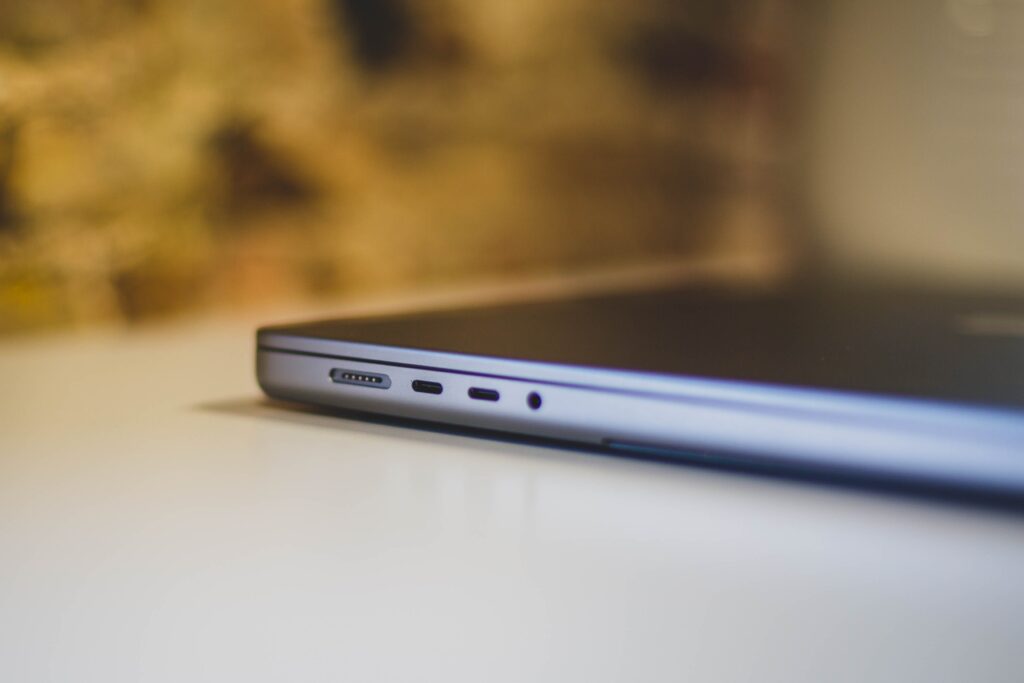
If your HDMI port is not working, it can be a frustrating experience, especially if you rely on it for watching movies, playing games, or connecting your computer to an external monitor. However, there are several possible reasons why your HDMI port is not working, and in this answer, we will discuss some of the common causes and potential solutions.
- Loose Connection: The first and most obvious thing to check is whether the HDMI cable is plugged in correctly. Sometimes, a loose connection can cause the port to malfunction. Try unplugging the cable and plugging it back in, making sure it is snugly fit into the port. If it still doesn’t work, try a different cable to rule out any issues with the cable itself.
- Damaged Cable or Port: HDMI cables can be damaged over time, which can cause connectivity issues. Check your cable for any physical damage, such as frayed or bent connectors, and replace it if necessary. Similarly, inspect your HDMI port for any signs of damage, such as bent or broken pins. If you notice any damage, you may need to replace the port or seek professional help.
- Outdated Drivers: If you’re trying to connect a computer to a TV or monitor using an HDMI cable, it’s possible that outdated drivers may be the issue. Updating your graphics card drivers can help resolve compatibility issues and ensure that your HDMI port works correctly.
- Wrong Input Source: Sometimes, the issue may not be with the HDMI port itself, but with the input source on your TV or monitor. Make sure that you’ve selected the correct input source on your TV or monitor. This is especially true if you have multiple HDMI ports and are using a different one than usual.
- Power Issues: In some cases, a lack of power can cause HDMI port issues. Make sure that the device you’re connecting to the HDMI port is turned on and receiving power. Additionally, check that the HDMI port itself is receiving power by making sure that any lights or indicators associated with it are on.
- Compatibility Issues: Different HDMI versions have different capabilities, and if your devices are using different versions, there may be compatibility issues. For example, if your TV is HDMI 1.4, and your laptop is HDMI 2.0, you may experience problems. Check the HDMI version of your devices and make sure that they’re compatible.
- Faulty Hardware: If none of the above solutions work, it’s possible that there’s a fault with the hardware. In this case, you may need to seek professional help or replace the device.
- Settings: In some cases, the HDMI port may not be working because of incorrect settings. For example, your device may be set to output to a different display, or the resolution settings may be incorrect. Check your device’s settings to ensure that they’re configured correctly for HDMI output.
In conclusion, if your HDMI port is not working, there can be several reasons for it. Try checking for loose connections, damaged cables or ports, outdated drivers, wrong input source, power issues, compatibility issues, and faulty hardware. Additionally, check your device’s settings to ensure that they’re configured correctly for HDMI output. By following these troubleshooting steps, you can hopefully identify and resolve the issue and get your HDMI port working again. If none of these solutions work, you may need to seek professional help or replace the device.