If you’ve lost or misplaced your Vizio TV remote, you might feel frustrated and unsure of what to do next. However, there are several solutions you can try to control your TV without the remote. In this answer, I will provide you with some possible solutions to operate your Vizio TV without the remote.
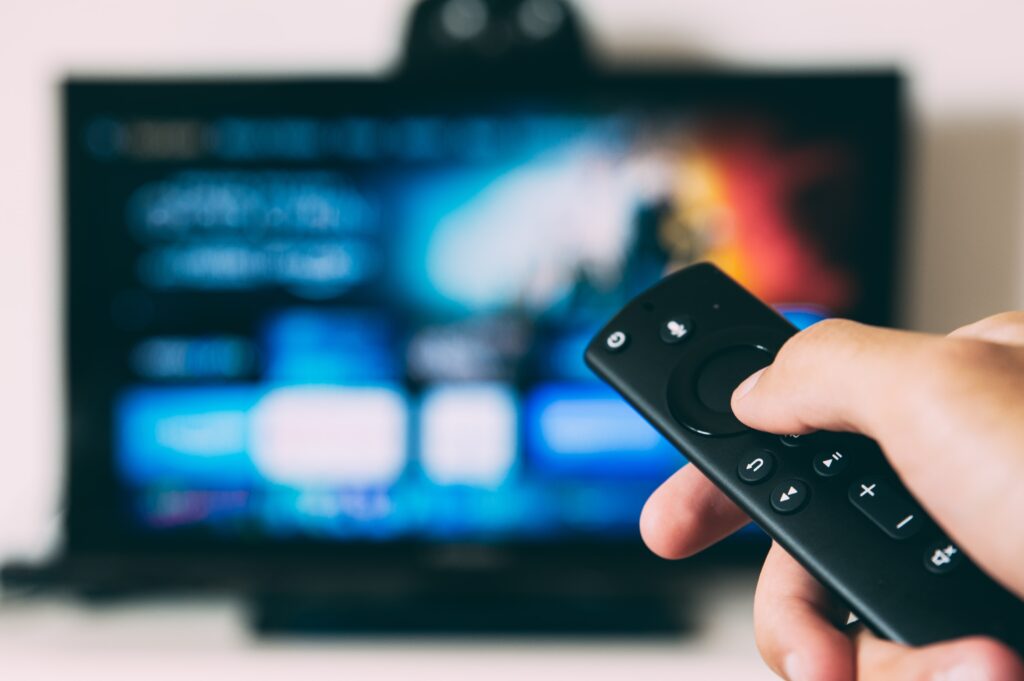
- Use a Universal Remote
The easiest and most convenient solution is to purchase a universal remote. Many universal remotes are compatible with Vizio TVs, and they can be found at most electronics stores. To use a universal remote, simply follow the instructions in the manual to program the remote to your TV. Once programmed, you can use the universal remote to control your Vizio TV just like you would with the original remote.
- Use the Vizio SmartCast App
If you have a smartphone or tablet, you can use the Vizio SmartCast app to control your TV. This app is available for free on the App Store and Google Play Store. After downloading the app, make sure your smartphone or tablet is connected to the same Wi-Fi network as your TV. Then, open the app and select your TV from the list of available devices. You can use the app to change channels, adjust the volume, and access other TV functions.
- Use the Physical Buttons on Your TV
Most Vizio TVs have physical buttons located on the back or side of the TV. These buttons can be used to power the TV on and off, adjust the volume, and change channels. Refer to your TV’s manual to find the location of the buttons and how to use them.
- Use a Gaming Controller
If you have a gaming console such as Xbox or PlayStation, you may be able to use the controller to control your TV. This is particularly useful if your console is connected to your TV. Follow the instructions in your console’s manual to set up the controller to work with your TV.
- Use Voice Control
If your Vizio TV is equipped with a voice control feature, you can use your voice to control your TV. This feature allows you to turn your TV on and off, change channels, adjust the volume, and access other TV functions. Refer to your TV’s manual to find out if your TV has a voice control feature and how to use it.
- Use HDMI CEC
If your Vizio TV is connected to another device, such as a cable box or streaming device, you may be able to use HDMI CEC to control your TV. HDMI CEC allows your TV to communicate with other devices through the HDMI cable. To use HDMI CEC, make sure the feature is enabled on both your TV and the other device. Then, use the remote for the other device to control your TV.
- Purchase a Replacement Remote
If none of the above solutions work for you, you can purchase a replacement remote from Vizio or a third-party seller. Make sure to order the correct remote for your TV model. Once you receive the replacement remote, follow the instructions in the manual to program it to your TV.
In conclusion, there are several solutions you can try if you’ve lost or misplaced your Vizio TV remote. From using a universal remote to using the Vizio SmartCast app or physical buttons on your TV, there are several ways to control your TV without the original remote. Consider trying these solutions before purchasing a replacement remote.