If your PS4 is not reading an external hard drive, there are several things you can try to troubleshoot and fix the problem. Here are some possible solutions:
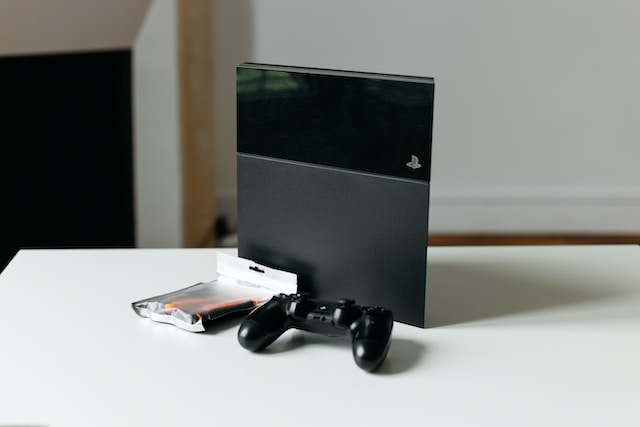
- Check the compatibility of the external hard drive with PS4: Before anything else, you need to make sure that the external hard drive you are using is compatible with PS4. The PS4 supports external hard drives with a maximum capacity of 8TB, formatted in either FAT32 or exFAT. If your external hard drive is not formatted in either of these formats, you may need to reformat it to work with the PS4.
- Check the USB cable and port: Make sure that the USB cable connecting the external hard drive to the PS4 is in good condition and properly connected. Also, try using a different USB port on the PS4, as some USB ports may be malfunctioning or not providing enough power to the external hard drive.
- Update the PS4 firmware: Sometimes, the PS4 may not recognize an external hard drive due to a firmware issue. To check for and install any available firmware updates, go to Settings > System Software Update on your PS4.
- Rebuild the PS4 database: The PS4 database stores information about installed games, applications, and media files. If the database is corrupted or fragmented, it may cause issues with external hard drives. To rebuild the database, boot the PS4 in Safe Mode by holding down the power button until you hear two beeps. Then, select the “Rebuild Database” option from the Safe Mode menu.
- Format the external hard drive: If none of the above solutions work, you may need to format the external hard drive to work with the PS4. Keep in mind that formatting the drive will erase all data on it, so make sure to back up any important files before proceeding. To format the drive, go to Settings > Devices > USB Storage Devices on your PS4, select the external hard drive, and choose the “Format as Extended Storage” option.
- Check the file system of the external hard drive: Even if your external hard drive is formatted in FAT32 or exFAT, it may not be recognized by the PS4 if it has a corrupted or unsupported file system. To check the file system, connect the external hard drive to a computer and open the Disk Management tool (on Windows) or Disk Utility (on macOS). Look for the external hard drive in the list of drives and check its file system. If it is not FAT32 or exFAT, you may need to reformat it to one of those formats.
- Check for physical damage: If your external hard drive is physically damaged or malfunctioning, it may not be recognized by the PS4. Check for any signs of physical damage, such as cracks, dents, or loose parts. Also, listen for any unusual noises coming from the external hard drive, as they may indicate a mechanical failure. If the external hard drive is physically damaged, you may need to replace it.
In conclusion, if your PS4 is not reading an external hard drive, there are several things you can try to fix the problem, including checking compatibility, USB cable and port, firmware updates, database rebuilding, formatting, file system, and physical damage. By following these steps, you can hopefully get your external hard drive working with your PS4 again.
PS4 not reading external hard drive?