Replacing a hard drive on a Windows 10 computer is a relatively straightforward process. Here are the steps you can follow to replace a hard drive on a Windows 10 computer:
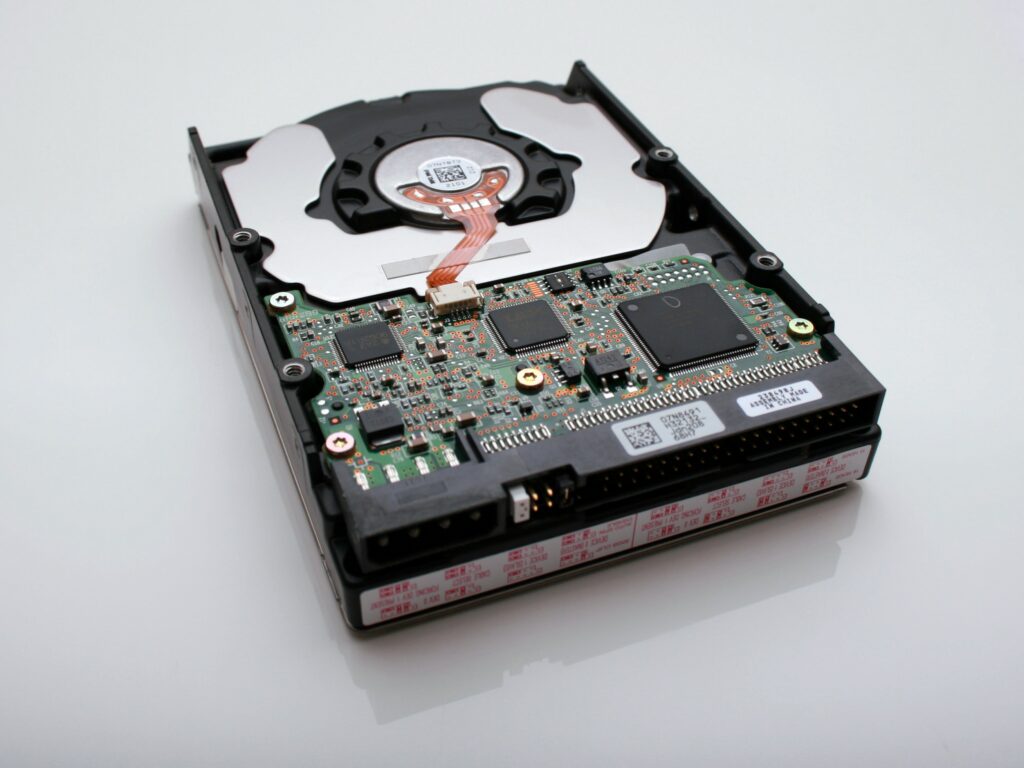
- Backup your data: Before you begin, make sure to back up all your important data to an external storage device or to cloud storage. This is important because you will need to wipe the old hard drive clean during the replacement process.
- Power down your computer: Make sure your computer is powered off and unplugged from the wall before you begin the replacement process. This is important to avoid any electrical damage to your computer or yourself.
- Open your computer case: Depending on the type of computer you have, you may need to remove screws or use a lever to open the case. Once the case is open, you should be able to see the hard drive.
- Disconnect the old hard drive: Locate the SATA or IDE data and power cables that are connected to your old hard drive. Gently pull them out of their sockets, making sure not to damage the connectors or cables.
- Remove the old hard drive: Once the cables are disconnected, you can remove the old hard drive from the computer case. Depending on the type of case you have, you may need to unscrew the hard drive from the case.
- Install the new hard drive: Take your new hard drive and slide it into the empty slot where the old hard drive was located. Make sure the connectors are facing outwards and align the screw holes with those in the case.
- Reconnect the cables: Connect the SATA or IDE data and power cables to the new hard drive. Make sure they are securely connected and not loose.
- Close the computer case: Once everything is connected and secured, close the computer case and screw it back into place.
- Install Windows 10: If you have a new hard drive with no operating system installed, you will need to install Windows 10. To do this, you will need a Windows 10 installation disc or a USB drive with the Windows 10 installation files. Insert the disc or USB drive into your computer and follow the prompts to install Windows 10.
- Restore your data: Once Windows 10 is installed, you can restore your data from your backup. This will bring your computer back to its previous state, with all your files and settings intact.
In summary, replacing a hard drive on a Windows 10 computer involves backing up your data, opening your computer case, disconnecting the old hard drive, removing it, installing the new hard drive, reconnecting the cables, installing Windows 10 (if necessary), and restoring your data. By following these steps, you can replace your hard drive and get your computer back up and running in no time.
Replace hard drive windows 10