Samsung offers a wide range of home theater systems that allow you to connect your devices wirelessly via Bluetooth. With Bluetooth connectivity, you can stream audio from your smartphone, tablet, or laptop directly to your home theater system and enjoy high-quality sound without the hassle of wires. Here’s how to set up and use Bluetooth on your Samsung home theater system:
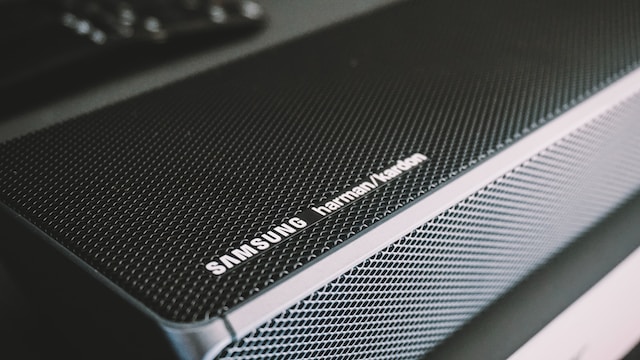
- Turn on your Samsung home theater system and put it in Bluetooth pairing mode: Most Samsung home theater systems have a dedicated Bluetooth button on the remote control. Press and hold this button until the Bluetooth indicator on the front panel of the system starts blinking.
- Turn on Bluetooth on your device: Open the Bluetooth settings on your smartphone, tablet, or laptop, and turn on Bluetooth. Your device will scan for nearby Bluetooth devices and display a list of available devices.
- Select your Samsung home theater system from the list of available devices: Look for the name of your Samsung home theater system on the list of available devices and select it. If prompted, enter the passcode “0000” to complete the pairing process.
- Play audio on your device: Once your device is connected to your Samsung home theater system via Bluetooth, you can start playing audio on your device. The audio will be streamed wirelessly to your home theater system, and you can control the volume and other settings using the remote control.
- Disconnect your device: To disconnect your device from your Samsung home theater system, simply turn off Bluetooth on your device or press the Bluetooth button on the remote control of your Samsung home theater system. The Bluetooth indicator on the front panel of the system will stop blinking, indicating that it is no longer in pairing mode.
Tips for using Bluetooth on your Samsung home theater system:
- Make sure your device is within range: Bluetooth connectivity has a limited range, typically up to 30 feet. Make sure your device is within range of your Samsung home theater system to ensure a stable and uninterrupted connection.
- Ensure your device is compatible: Not all devices are compatible with Bluetooth. Make sure your device supports Bluetooth connectivity before attempting to pair it with your Samsung home theater system.
- Use high-quality audio files: Bluetooth streaming compresses audio files to reduce file size, which can sometimes result in lower quality audio. To ensure the best possible sound quality, use high-quality audio files when streaming audio to your Samsung home theater system.
- Use the latest firmware: Make sure your Samsung home theater system has the latest firmware installed. Firmware updates can improve the performance and functionality of your home theater system, including Bluetooth connectivity.
- Keep your system clean: Bluetooth signals can be affected by interference from other electronic devices, such as microwave ovens and wireless routers. Keep your Samsung home theater system clean and free from dust and debris to ensure the best possible Bluetooth connectivity.
In conclusion, setting up and using Bluetooth on your Samsung home theater system is a simple and convenient way to stream audio wirelessly from your device. By following the steps above and taking some simple precautions, you can enjoy high-quality sound without the hassle of wires.
Samsung home theater system bluetooth?