If you have a Samsung Smart TV and there is no picture on the screen, it can be frustrating and worrying. However, there are several things that you can do to troubleshoot the issue and potentially fix it. Here are some steps to try:
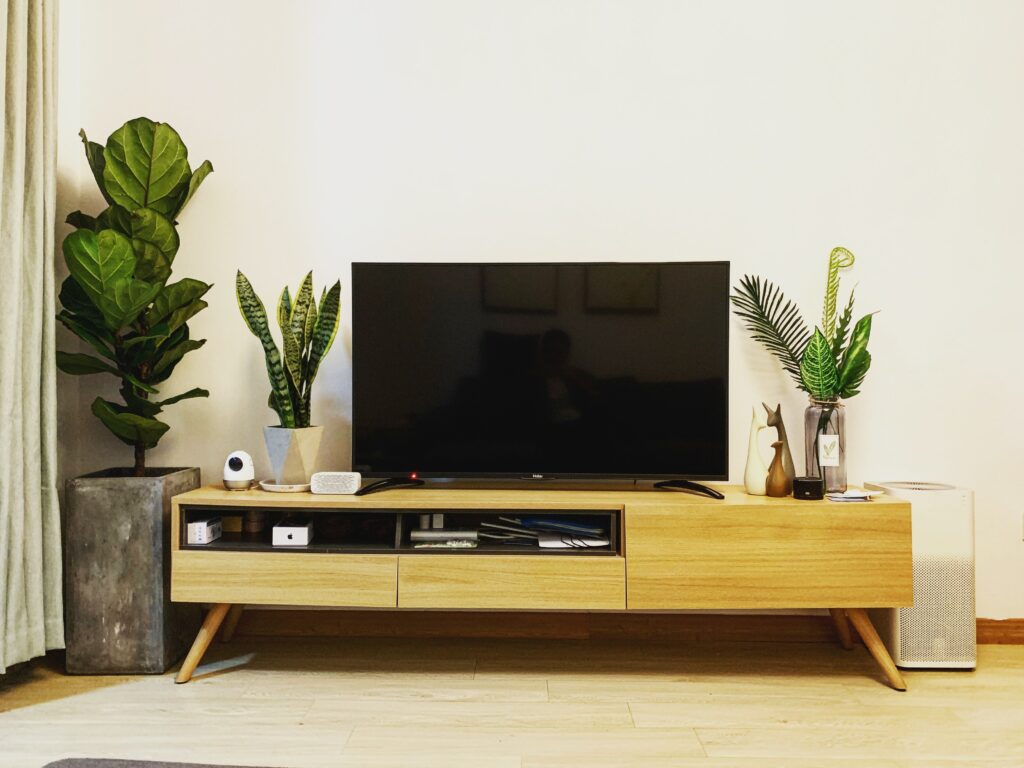
Step 1: Check the power source
Ensure that your Samsung Smart TV is properly plugged into a power outlet and that the outlet is functioning correctly. You can do this by plugging in another device, such as a lamp, into the same outlet to see if it works. Also, check that the power cable is securely connected to the back of the TV.
Step 2: Check the connections
Ensure that all the cables are securely connected to the TV and any external devices, such as a cable box, DVD player, or gaming console. If the cables are loose or disconnected, it can result in no picture on the screen. Also, check that the correct input is selected on the TV.
Step 3: Check the settings
Ensure that the brightness, contrast, and other settings on the TV are correctly configured. If the brightness or contrast is set too low, it can cause the screen to appear black or dark.
Step 4: Restart the TV
Try turning the TV off and unplugging it from the power source for a few minutes. Then, plug it back in and turn it on. This can sometimes resolve issues with the TV.
Step 5: Check for firmware updates
Ensure that your Samsung Smart TV is running the latest firmware. You can check for updates by going to the TV’s settings menu and selecting “Support” and then “Software Update.” If an update is available, download and install it.
Step 6: Reset the TV
If none of the above steps resolve the issue, try resetting the TV to its default settings. You can do this by going to the TV’s settings menu and selecting “General” and then “Reset.” This will reset the TV to its original settings and may resolve the issue.
If none of the above steps work, the issue may be with the TV’s hardware. In this case, it may be necessary to contact Samsung customer support or a qualified technician for further assistance. They may suggest sending the TV in for repairs or replacing the TV altogether.
In conclusion, if your Samsung Smart TV has no picture, there are several things that you can do to troubleshoot the issue. These include checking the power source, connections, and settings, restarting the TV, checking for firmware updates, and resetting the TV to its default settings. If none of these steps work, it may be necessary to contact Samsung customer support or a qualified technician for further assistance.