Samsung Smart TVs are known for their innovative features and quality display. However, like any electronic device, they can sometimes experience technical issues. Here are some common Samsung Smart TV troubleshooting steps:
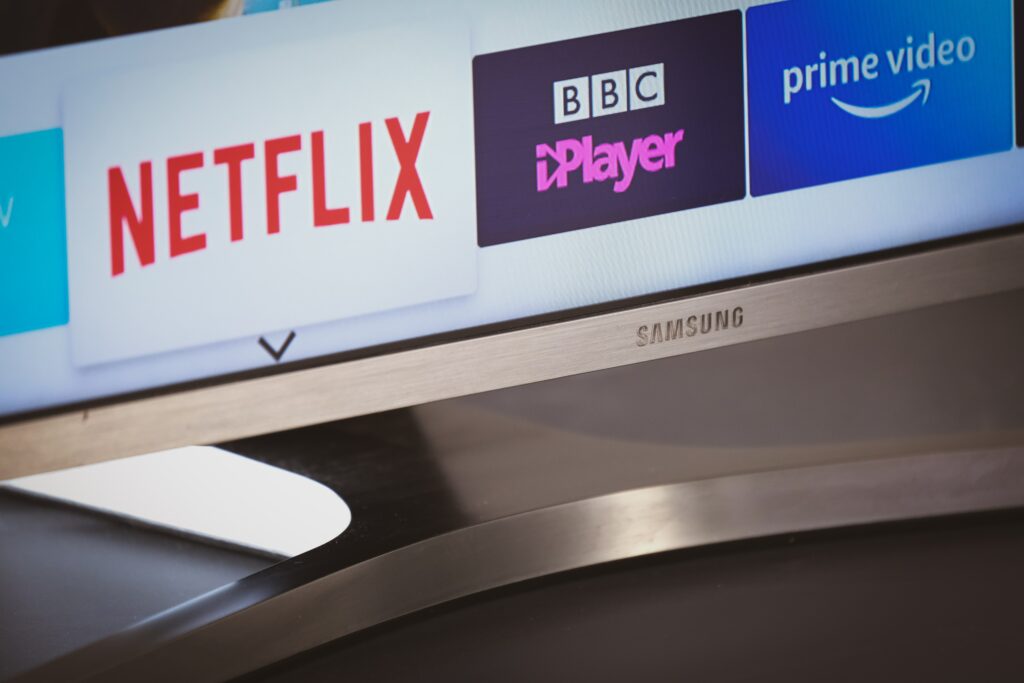
- Restart your Samsung Smart TV: The first step in troubleshooting your Samsung Smart TV is to restart it. To do this, unplug the TV from the wall outlet and wait for 30 seconds before plugging it back in. Once the TV powers up, check if the issue has been resolved.
- Check your network connection: Samsung Smart TVs require an active internet connection to access apps and streaming services. Check if your internet connection is stable and if your Samsung Smart TV is properly connected to your network. If your network connection is unstable, try resetting your modem or router.
- Reset your Samsung Smart TV to factory settings: If your Samsung Smart TV is still experiencing issues after restarting and checking your network connection, try resetting it to its factory settings. To do this, go to “Settings” > “Support” > “Self Diagnosis” > “Reset” and follow the on-screen prompts.
- Update your Samsung Smart TV software: Ensure that your Samsung Smart TV has the latest software updates installed. To do this, go to “Settings” > “Support” > “Software Update” and select “Update Now”.
- Check the HDMI or cable connections: If you are experiencing display or sound issues, check if the HDMI or cable connections are properly plugged in and secured. Also, ensure that your Samsung Smart TV is set to the correct input.
- Check if the app is up-to-date: If you are experiencing issues with a specific app, check if the app is up-to-date. Go to the app store and check for updates.
- Reset the app: If the app is up-to-date and you are still experiencing issues, try resetting the app. To do this, go to “Settings” > “Apps” > select the app > “Storage” > “Clear Data” and “Clear Cache”.
- Disable Quick Start: If your Samsung Smart TV is taking longer than usual to turn on, try disabling Quick Start. To do this, go to “Settings” > “General” > “System Manager” > “Smart Features” and toggle off Quick Start.
- Check for physical damage: If your Samsung Smart TV is physically damaged, such as a cracked screen or water damage, it may require repairs or replacement.
- Contact Samsung customer support: If you have tried all of the above troubleshooting steps and your Samsung Smart TV is still experiencing issues, contact Samsung customer support. They can provide further assistance and guidance.
Samsung Smart TV Troubleshooting