Screen mirroring is a great feature that allows you to display your iPhone’s screen on a Samsung Smart TV. This can be useful for many purposes, such as sharing photos or videos with friends and family, playing mobile games on a larger screen, or streaming content from your iPhone to your TV. Here’s how to screen mirror your iPhone to a Samsung Smart TV:
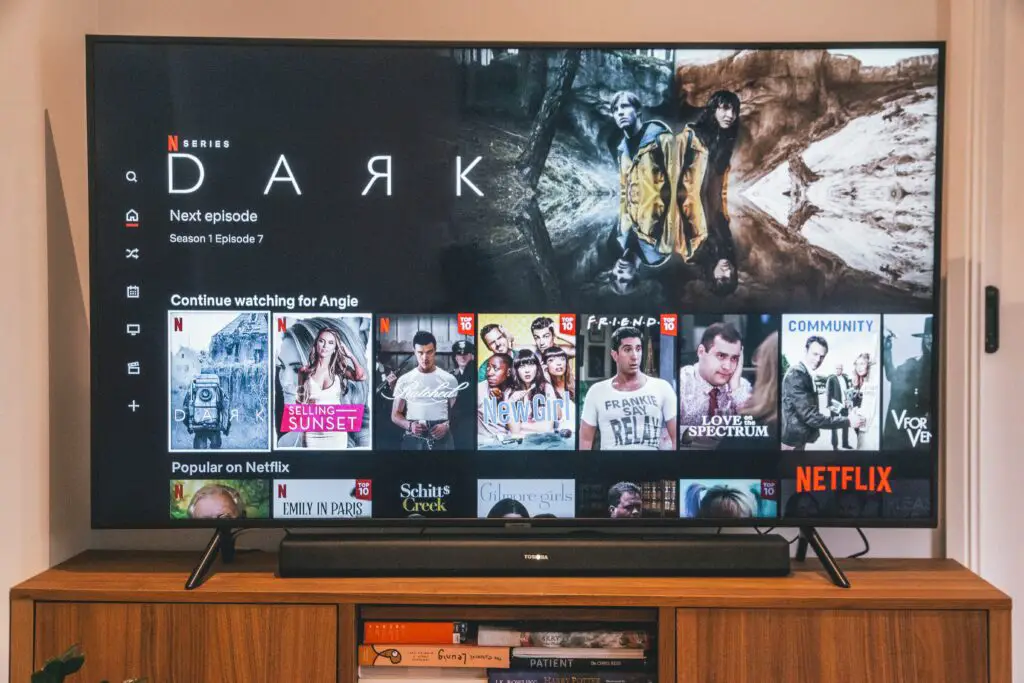
Step 1: Check compatibility
Before you start, make sure that both your Samsung Smart TV and iPhone are compatible with screen mirroring. To check if your Samsung TV supports screen mirroring, go to the TV’s settings menu and look for the screen mirroring option. For iPhones, screen mirroring is available on iOS devices running version 11 or later.
Step 2: Connect your Samsung TV to the same Wi-Fi network as your iPhone
Both your iPhone and Samsung TV should be connected to the same Wi-Fi network. If they are not on the same network, screen mirroring will not work.
Step 3: Enable screen mirroring on your Samsung Smart TV
To enable screen mirroring on your Samsung Smart TV, press the “Source” button on the remote control and select the “Screen Mirroring” option. Your TV will now be ready to receive a screen mirroring connection.
Step 4: Open Control Center on your iPhone
Swipe up from the bottom of your iPhone’s screen to open Control Center. For iPhones with a home button, swipe up from the bottom of the screen. For iPhones without a home button, swipe down from the top right corner of the screen.
Step 5: Tap on Screen Mirroring
In the Control Center, tap on the Screen Mirroring icon. This will bring up a list of available devices for screen mirroring.
Step 6: Select your Samsung Smart TV
From the list of available devices, select your Samsung Smart TV. This will start the screen mirroring process.
Step 7: Begin screen mirroring
Once you have selected your Samsung TV, your iPhone’s screen will be mirrored on the TV. You can now use your iPhone as normal, and the screen will be displayed on the TV.
Step 8: Adjust screen mirroring settings
You can adjust the settings for screen mirroring on your iPhone by tapping on the “Screen Mirroring” option in the Control Center. From there, you can adjust the aspect ratio and resolution of the mirrored screen.
Step 9: End screen mirroring
To end screen mirroring, simply tap on the “Screen Mirroring” option in the Control Center and select “Stop Mirroring.” This will disconnect your iPhone from the TV.
In conclusion, screen mirroring your iPhone to a Samsung Smart TV is a simple process that can be done with a few easy steps. To do this, make sure your Samsung TV and iPhone are compatible, connect both devices to the same Wi-Fi network, enable screen mirroring on your Samsung TV, open the Control Center on your iPhone, select your Samsung TV from the list of available devices, and begin screen mirroring. You can also adjust the settings for screen mirroring on your iPhone and end the screen mirroring process at any time.